User Manual
For card rooms, tournament directors, floor staff, owners and bosses, players and visitors.
Edition of 1 November 2026. Covers tournaments, cash games and the dealer app, the bar and loyalty, players and leagues, festivals, TV screens, reports, the team and its roles, integrations, the public pages, room reviews and favourite rooms, the player account, and the platform administrator.
Start here
New to POKERVUE? Pick who you are, then follow the pictures. Every picture is the real screen; the yellow numbers match the list under it.
Your first tournament, in 7 steps
About 15 minutes. You need a computer or tablet for the control screen. A TV is optional.
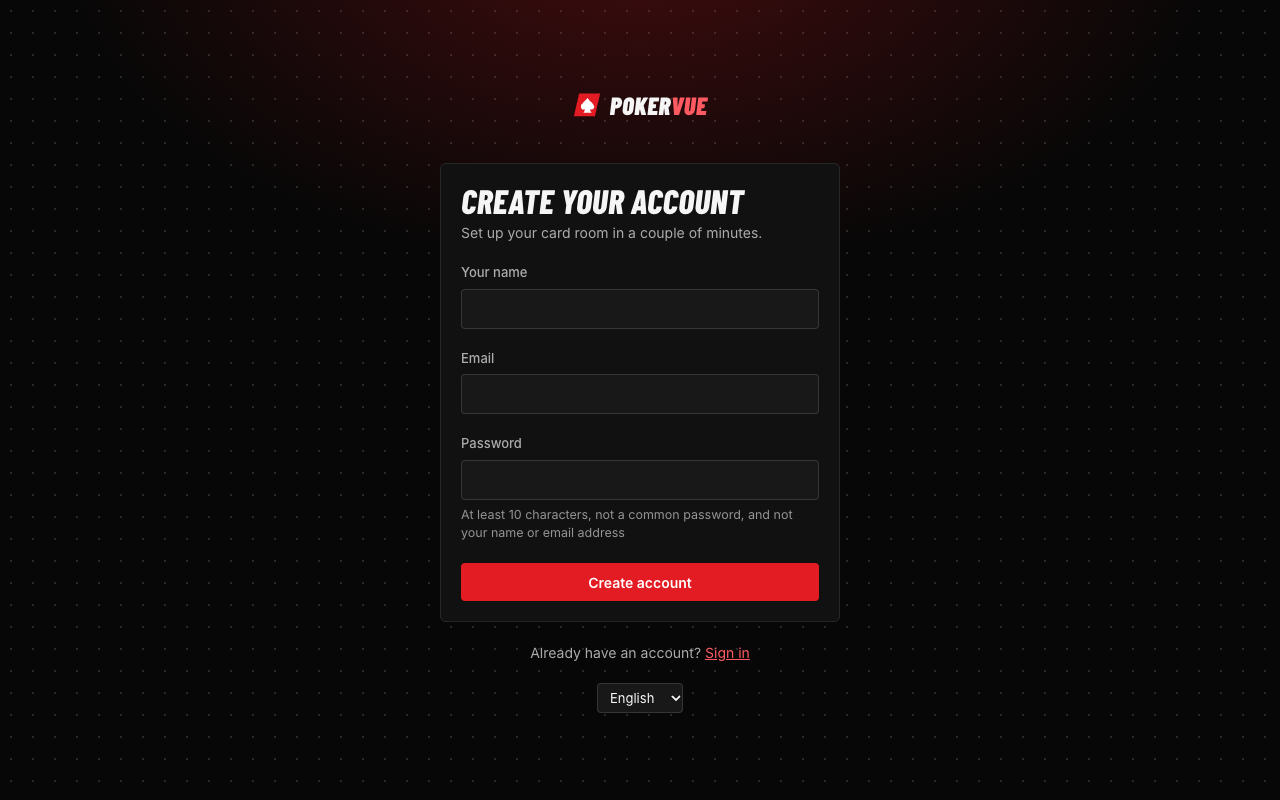
Create your room
Look around the dashboard
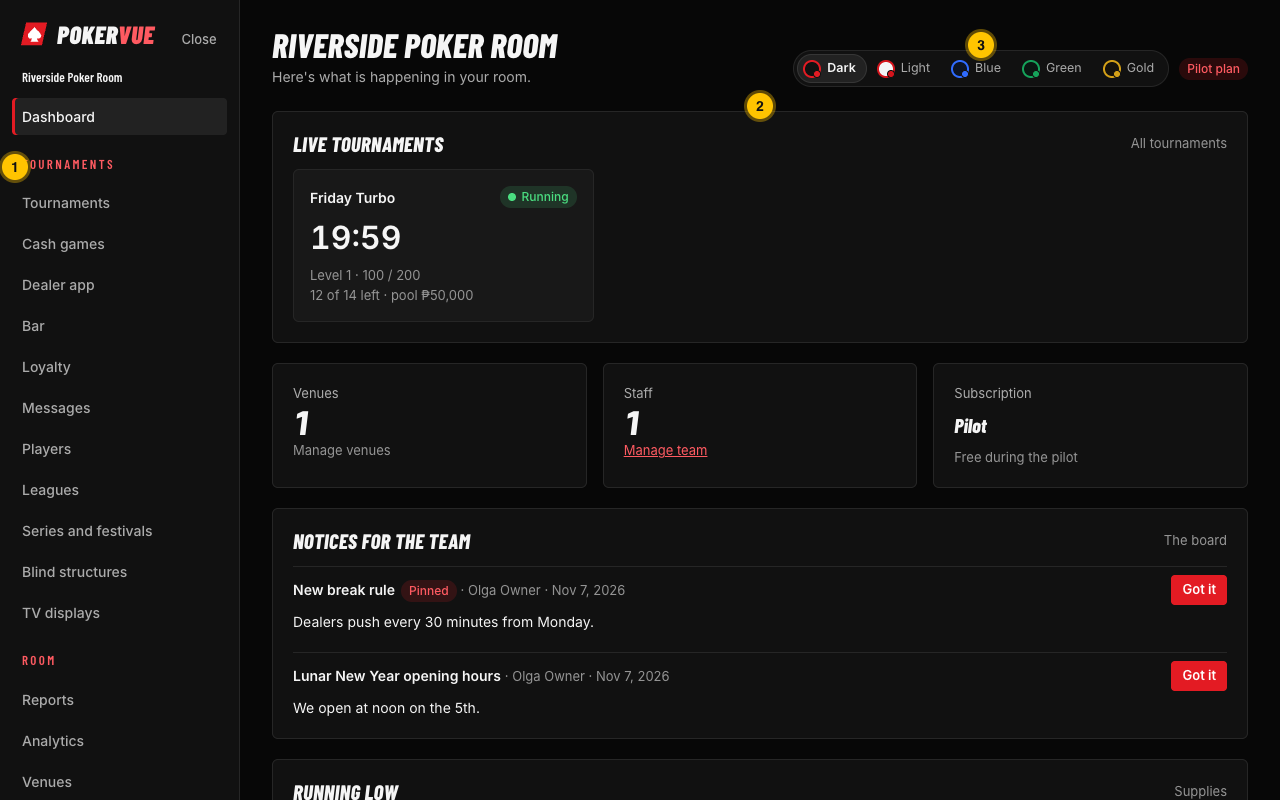
- 1The menu. Tournaments is where you will spend most of your time.
- 2What is happening now: every tournament that is running.
- 3Colour themes: pick the look you like. It is saved for you.
- 4The time clock for your staff: clock in and out for the timesheet.
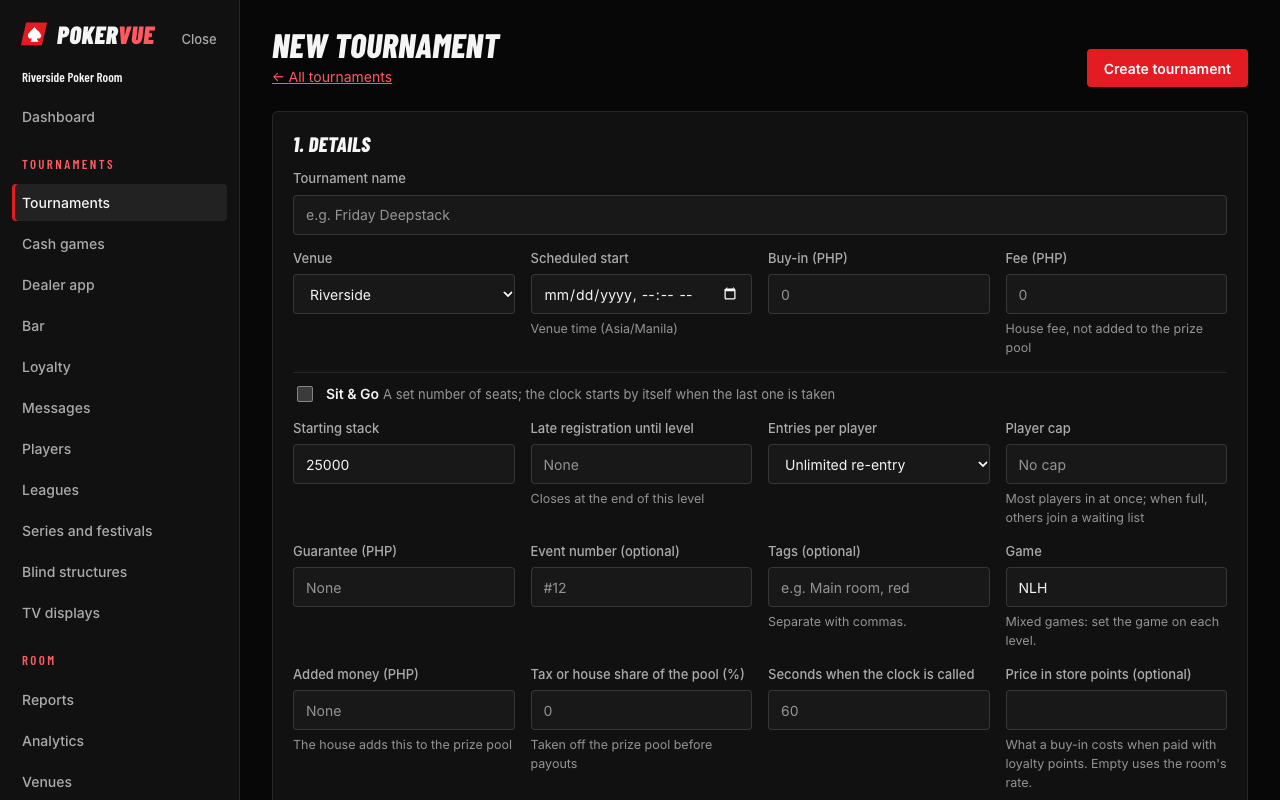
Create the tournament
Register the players
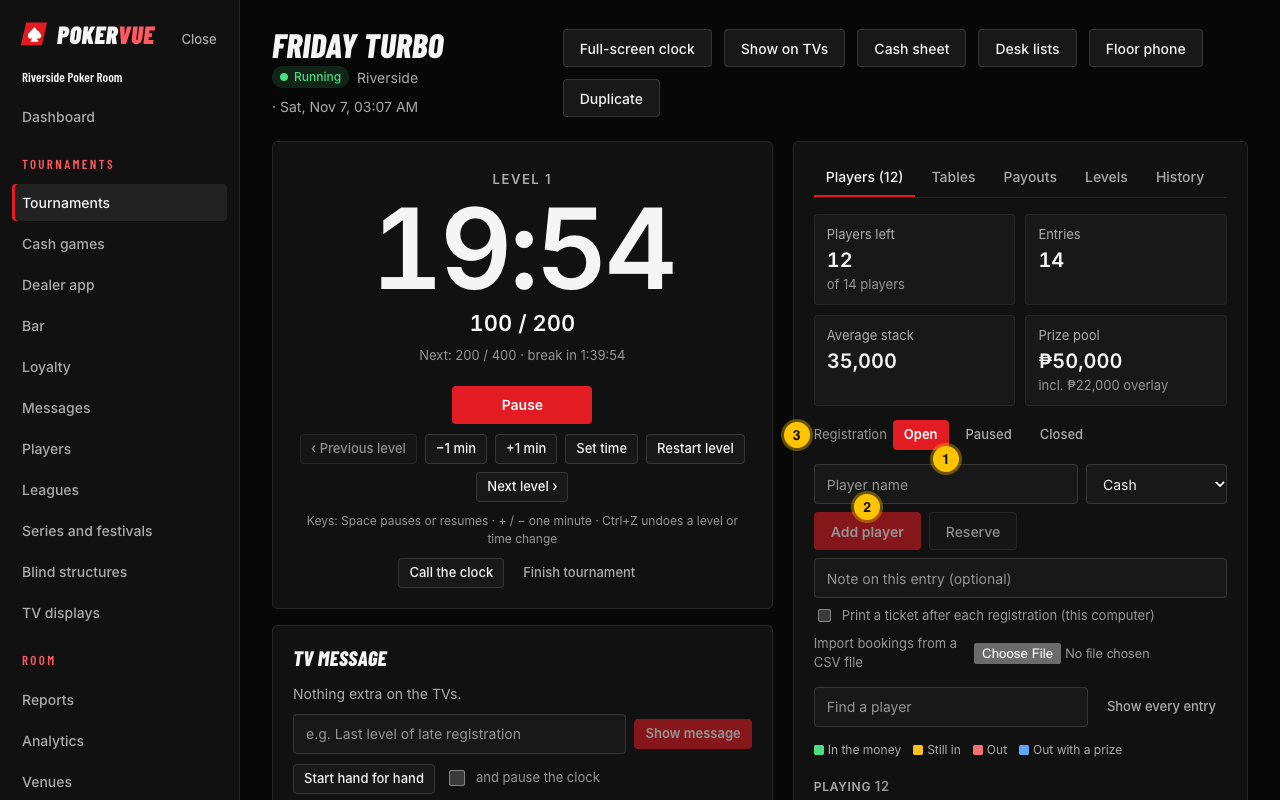
- 1Type the player's name; known players are offered as you type.
- 2Add player registers them, takes the buy-in and draws a seat.
- 3Registration: open, paused or closed. Pause it when the field is full.
Start the clock
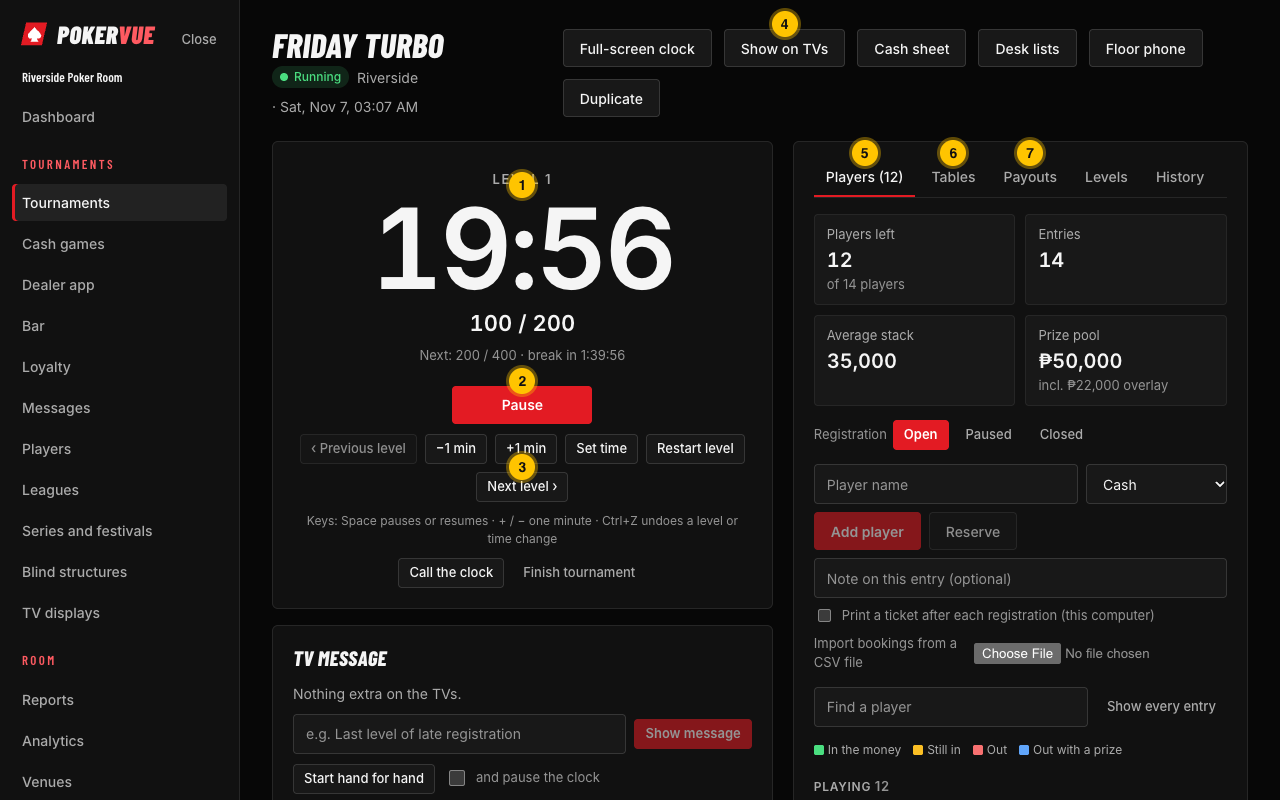
- 1The clock, the level and the blinds. Everyone sees this.
- 2Pause and Resume. The space bar does the same.
- 3Next level (and Previous, +1 min, -1 min, Set time) when you need to move the clock yourself.
- 4Show on TVs sends this tournament to your TV screens.
- 5Players: register, rebuy, add-on, bust.
- 6Tables: seats, balancing and moving players.
- 7Payouts: the prize pool, places and any deal.
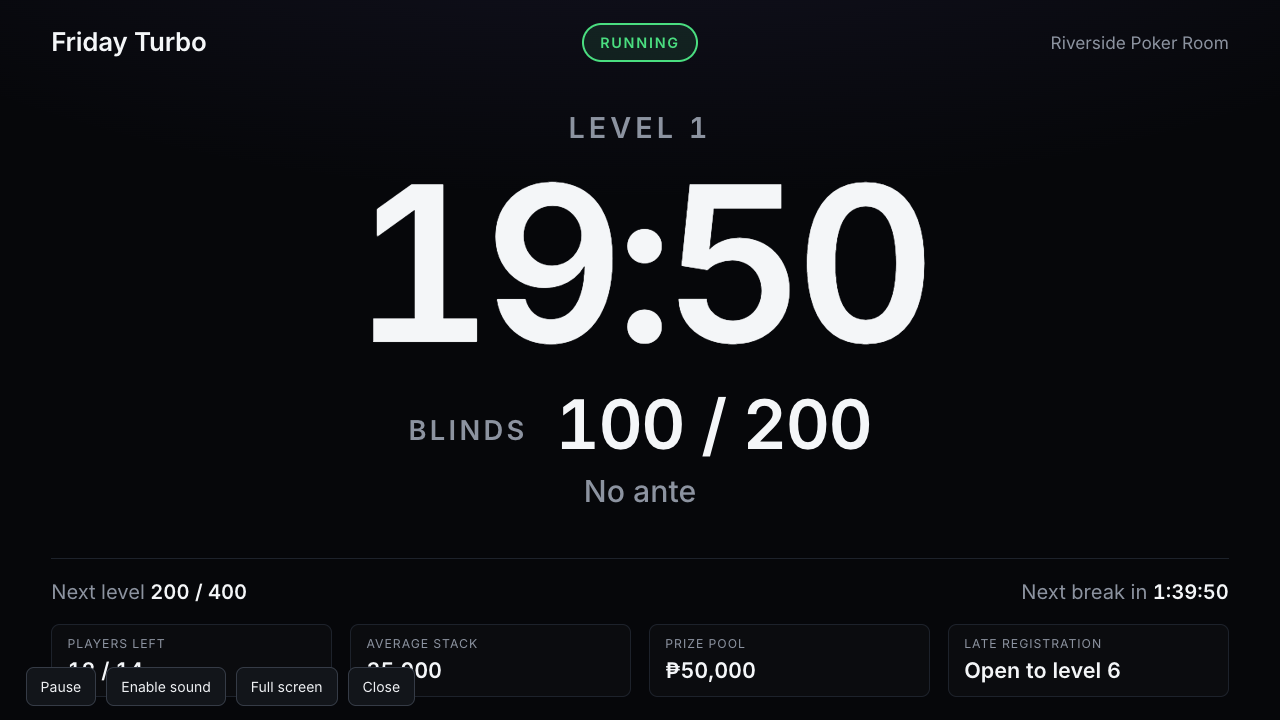
Show it on the TV
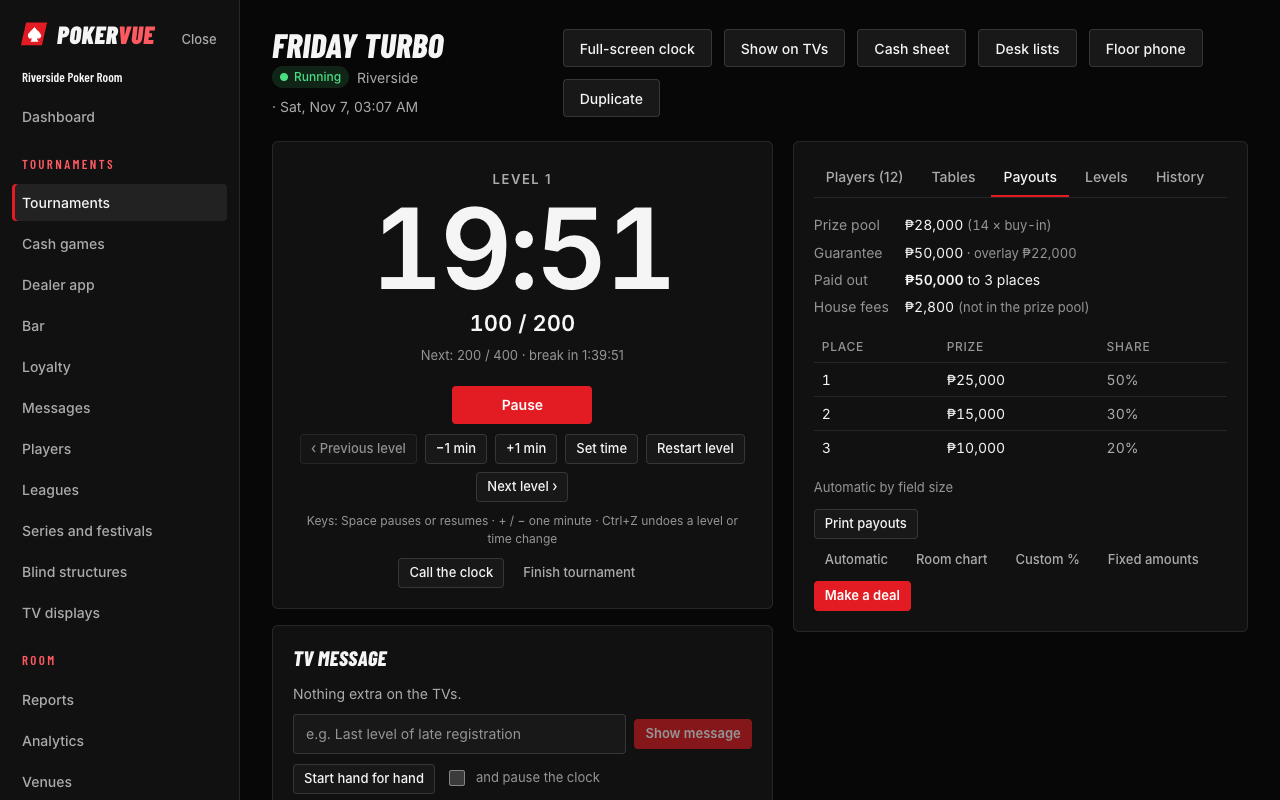
Pay out and finish
Contents
Find it fast
Every page of POKERVUE, with where it is in the menu. Red tiles are on the staff menu, blue tiles are for the owner and the platform, green tiles are for players and visitors.
1. Who uses POKERVUE
POKERVUE runs a poker room from one place: the tournament clock, registration and payouts, cash games, the bar, loyalty points, TV screens, reports, and the pages your players and visitors see. Everyone signs in with their own account. What each person can do depends on their role in the room.
1.1 The roles of the staff
| Role | What it is for |
|---|---|
| Owner | Full control, including other owners, the plan and billing. A room always keeps at least one owner. |
| Administrator | Manages venues, staff, settings, tournaments, cash games, the bar, loyalty, messages and integrations. Cannot change the plan or other owners. |
| Floor manager | Runs the room on the day: the clock, registration, payouts, seating, cash tables (including the dealer app), the bar till and player accounts. Builds and edits blind structures. Sees private player details. Cannot create tournaments, change settings or manage the team. |
| Monitor | For an owner or boss who only checks. Sees everything in every venue (reports, cash sessions, the floor, private player details, the activity log) and changes nothing. Section 14. |
| Read-only | Sees tournaments, players and the team, but not private player details, and changes nothing. |
| Custom roles | The owner can make roles with exactly the permissions a job needs (for example a cashier or a dealer supervisor). Section 15. |
The menu only shows what your role may use. If a page you expect is missing, ask an owner or administrator to check your role.
1.2 People outside the staff
- Players have a free personal account, linked to the rooms they play in. They see their own results, points and bookings in My poker (section 20).
- Visitors need no account. They browse the room finder, festival schedules, results and room pages, and can book a seat where a room allows it (section 21).
- Platform support can be invited into a room for a limited time, and everything they do is shown to the room (section 15.5).
- Platform administrators are the people who run the POKERVUE service itself. They manage all rooms, plans and payments, never a room's day-to-day play. Section 25.
2. Getting started
Who: everyone for sign-in and the account; owner and administrator for setting up the room.
2.1 Create your account and your room
- Open the site and choose Sign up. Enter your name, email and a strong password, or choose Sign in with Google.
- Create your organization (the room): its name, its first venue, the time zone and the currency of that venue. Pick the time zone carefully: it decides the business day on reports and the times on public pages.
- The Getting started list on the dashboard shows what is left: a blind structure, a first tournament, TV screens, the public page and inviting your team.
2.2 Your account
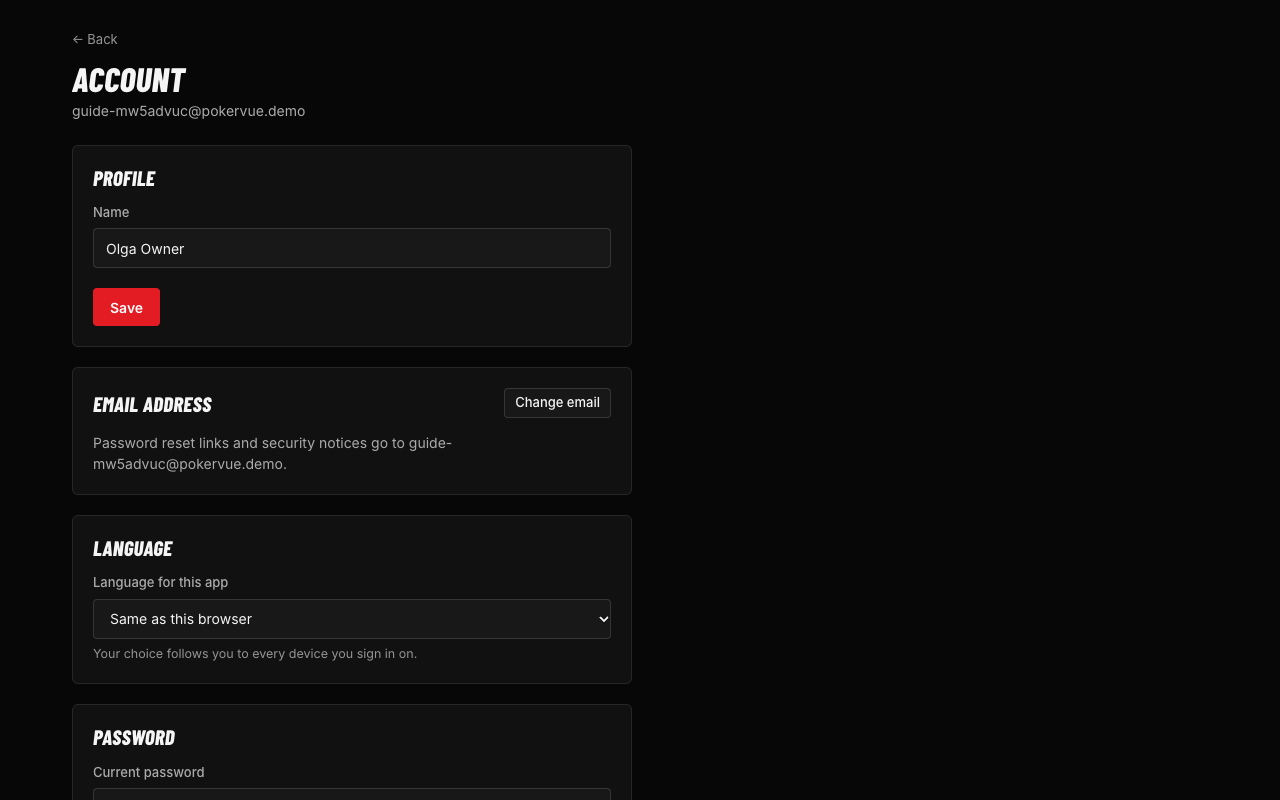
Open Account in the menu to change your name, email and password, choose your language, and manage sign-in security.
- Two-factor sign-in: add an authenticator app so a code is asked for after the password. A room can require this of everyone on its team; you then see a prompt to set it up.
- Recent sign-in: for sensitive changes (email, password, two-factor) you may be asked to confirm your password again.
- Forgot password: use the link on the sign-in page. The reset email works once. For safety the page gives the same answer whether or not the email exists.
2.3 Invitations
Staff join by invitation (section 15.1). Open the link in the email, sign in or create an account with that same email, and accept. A link is valid for 7 days. If you are signed in as someone else, the page offers Sign out and use the invited address. An owner can resend an invitation from the Team page.
2.4 Moving around
The menu on the left (the Menu button on a phone) has two groups. Tournaments: Dashboard, Tournaments, Cash games, Dealer app, Bar, Loyalty, Messages, Players, Leagues, Series and festivals, Blind structures and TV displays. Room: Reports, Analytics, Venues, Team, Activity log, Integrations, Plan and billing and Settings. If you belong to several rooms, switch between them with the selector at the top of the menu. Report a problem sends a note to your room's owners. Platform administrators also see Platform admin at the bottom (section 25).
- 1The menu, in two groups: Tournaments and Room.
- 2Your rooms' live tournaments.
- 3Colour themes.
- 4The time clock.
Closing the tab by mistake. While a tournament clock is running or paused, players are seated in cash games, desk actions are still waiting to be sent, or a form has changes you have not saved, closing the tab, closing the browser or reloading the page asks Leave site? first. Choose Cancel to stay. The browser writes that question in its own words; no page can change them. When nothing is going on, the tab closes without asking. Signing out never asks, and TV screens and public pages never ask. Closing the tab does not stop a clock: it keeps running on the server and on the TVs.
Help. This guide is at /manual on your POKERVUE address (the landing page links to it as Guide, and the PDF is next to it). Inside the app, Help at the bottom of the menu opens the guide at the section for the page you are on.
3. The dashboard
Who: everyone with access to the room.
The dashboard is the room at a glance: Getting started (while there is something left to do), Live tournaments with their level, time and players left, what is scheduled, and Recent activity.
Your Room
2 Getting started
☑ Blind structure ☐ First tournament ☐ TV screens ☐ Public page ☐ Invite your team3 Live tournaments
Scheduled
4 Recent activity
- 1 The colour switcher (owners and administrators): Dark, Light, Blue, Green or Gold.
- 2 The Getting started list, until everything is done.
- 3 Live tournaments with level, blinds, time and players left. Choose one to open its control screen.
- 4 Recent activity from the whole room.
Birthdays this week. Staff who see private player details also get a card with the players whose birthday is today or in the next seven days, the age they turn, and whether they have played this year. Open the player to give them a voucher or send a message. The birthday comes from the player's details (section 11.1).
3.1 Colour themes
The dashboard and staff pages can use one of five looks: Dark (the default), Light, Blue, Green and Gold. Owners and administrators change it from the colour switcher on the dashboard itself. The choice is one theme for the whole room and applies to the staff pages only; players and public pages keep their default look.
4. Blind structures
Who: floor managers, administrators, owners (create and edit); everyone else can look.
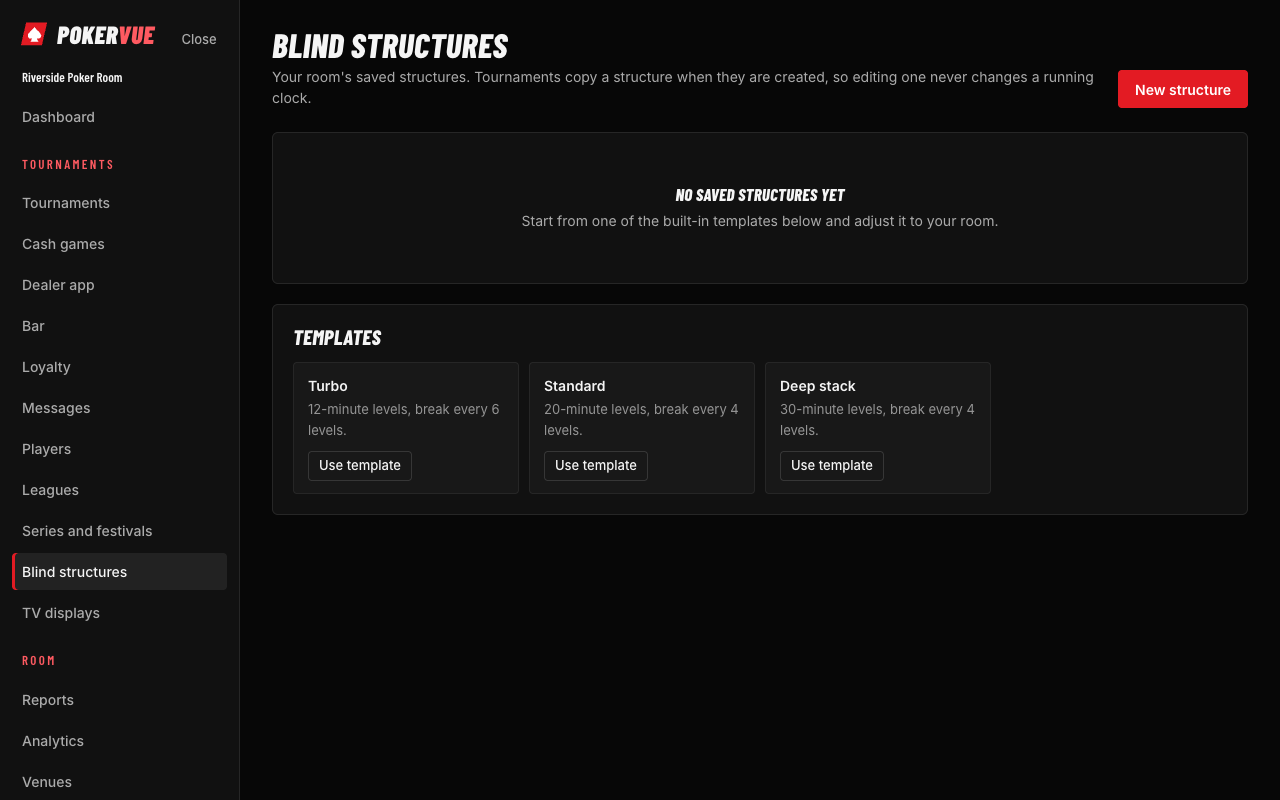
A blind structure is the list of levels and breaks a tournament follows. Open Blind structures.
- New structure: add levels with small blind, big blind, ante and length in minutes; add breaks between them. Save it under a name such as "Deepstack 20 min".
- Import levels from a spreadsheet if you already have them.
- A structure used by a tournament is copied into it when the tournament is made, so changing the saved structure later never disturbs a running event.
- During a tournament, a floor manager can still edit the levels that have not been played.
5. Running a tournament
Who: administrators and owners create tournaments; floor managers and above run them.
5.1 Create a tournament
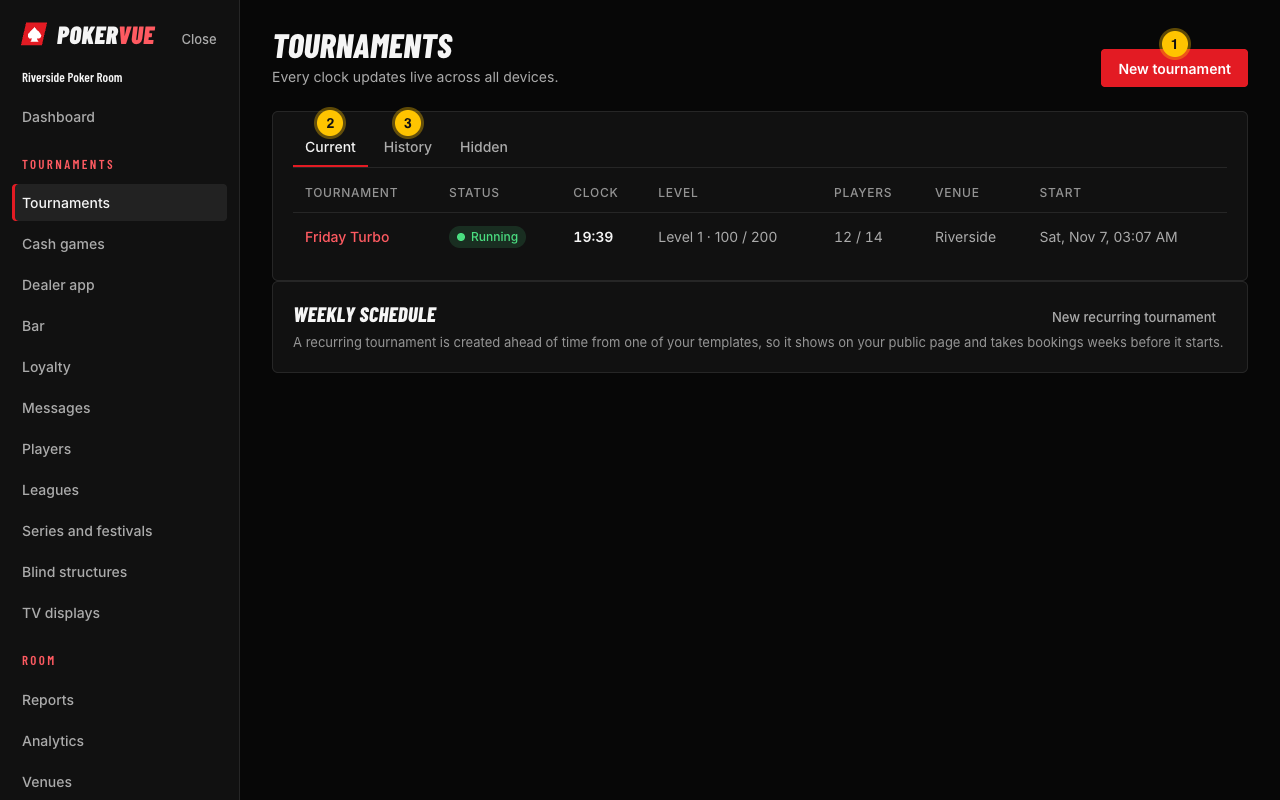
- 1New tournament.
- 2Current: not finished yet.
- 3History: finished tournaments, newest first.
- Open Tournaments and choose New tournament.
- Give it a name, the venue, the start time, the buy-in and fee, the starting stack, and the blind structure. Set the late registration level, an optional guarantee, an optional maximum entries and an optional event number (useful for festivals).
- Choose the options it needs: rebuys, add-ons, bounties (including mystery bounties), buy-in tiers (for example different prices for members), or a sit and go.
- Save. The tournament appears under Current. Finished ones move to History, which is searchable and paged.
Recurring tournaments. A game that runs every week does not need typing in each time. Save its settings as a template (on the new-tournament form), then on Tournaments open Weekly schedule and choose New recurring tournament: give it a name, pick the template, tick the days, set the start time on the venue's clock and how far ahead to create it (one to eight weeks). The coming nights are created at once and kept topped up every hour, so they show on your public page and take bookings weeks ahead. Each night is an ordinary tournament: edit or delete it on its own (a deleted night stays deleted). Pause a schedule for a holiday and Resume it after; Edit changes the nights still to come, not those already made; Remove can also take the coming nights nobody has joined yet.
5.2 The control screen
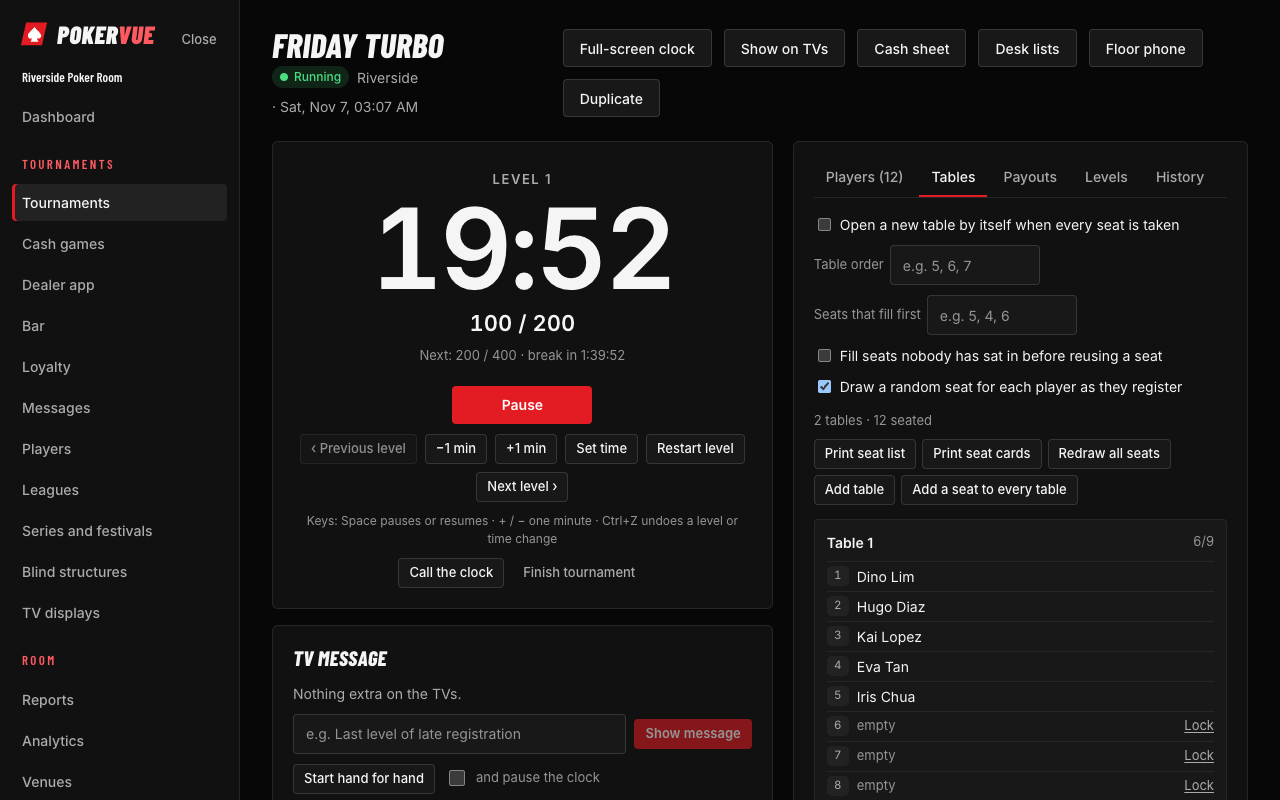
Open the tournament to reach the control screen, built for a tablet or laptop at the desk. It shows the clock, the level, players left, the prize pool, and the actions below.
- 1The clock and the level. Every viewer follows the server, so screens and phones agree.
- 2Pause and resume.
- 3Next or previous level, and small adjustments to the time.
- 4Show on TVs, the cash sheet, desk lists and the floor phone.
- 5Players: register, rebuy, add-on, bust.
- 6Tables: seating and balancing.
- 7Payouts and deals.
- 1Players left, entries, average stack and prize pool.
- 2Registration: open, paused or closed.
- 3Add a player, or Reserve a seat for later.
| Action | What it does |
|---|---|
| Start, pause, resume | Controls the clock. Every viewer's clock follows the server, so screens and phones agree. |
| Next / previous level | Moves levels. A mis-click can be undone with Undo. |
| Adjust time | Add or take away time on the current level (for a long hand or a clock call). |
| Announce / clock call | Puts a message on the TV screens and plays a sound where the screen has one. |
| Register a player | Search by name, nickname or member number, or add a new player. Choose how the buy-in was paid. |
| Rebuy, add-on | Recorded against the entry while the tournament allows them; they feed the prize pool. |
| Bust a player | Records the finishing place, who knocked them out (for bounties) and releases the seat. |
| Seating | Create tables, seat players, move and balance tables, and print seat cards. |
| Payouts | Uses a payout template or your own places, then shows who is paid what. |
| Chip counts | Record counts from the floor (also from the phone view), and the chip leaders list. |
| Finish | Closes the tournament, locks the results and updates leagues, loyalty points and reports. |
5.3 Registration details
- A player can enter once or more (re-entry) up to the maximum entries.
- How the buy-in was paid (cash, card, chips, account, satellite ticket) is saved with the entry and appears on the cash report.
- When the field is full, new players go to a waiting list and are seated when someone busts.
- A void or correction keeps a trace: nothing is deleted without a record in the activity log.
- A banned player is stopped at registration, with the reason shown to staff who may see private details.
5.4 Bounties
Switch bounties on when creating the tournament and set the bounty amount. Each bust records who won the bounty. Mystery bounties draw a hidden amount for each knockout. Bounties won appear on the player's history and the tournament results. Mystery bounties are not available together with flights.
5.5 Payouts, places and deals
Open Payouts. Pick a payout template (such as the top 15%) or enter the places by hand. Prizes can be in money, and a deal at the final table can be recorded with the chop amounts agreed. The final results page lists every place, the prize and the bounties. Under More money in and out of the pool on the tournament's details, a tax on winnings is withheld from each winner's profit; set Tax on winnings only above to an amount to leave smaller prizes untaxed (for example where prizes up to a limit are tax-free), and the payout list shows the tax and the net amount per winner.
5.6 Finishing, the champion and results
- Choose Finish when the winner is decided. The results are saved and cannot be edited without a recorded correction.
- Bringing in past results. A room that switches from another system keeps its history: on Tournaments → History, Import results from a file takes a CSV with one row per finishing place (tournament, date, place, player, and if you have them member number, prize, buy-in, fee, field size, country). Pick which column holds which field, the venue, the date order in the file and whether amounts are whole units or cents. Each tournament name and date becomes a finished tournament marked Imported, with its results; players are matched by member number, then by name, and otherwise added. Imported results count in leagues, player records, the public page and My poker like any other. The same file imported twice is skipped.
- After a tournament is finished you can add a champion photo from the tournament's results. It then shows on the festival page, on the room page and in the visitor results list, next to the winner's name. A player who asked to be left off public pages shows without a name or photo.
5.7 Booking a seat in advance
A tournament can be opened for online booking. Visitors choose it on the public page, enter a name and email, and receive a confirmation with a link to cancel. The room sees the booked players at the desk, and can set a cap on online seats. Bookings that come from the public page are marked as such at registration.
Reminders. About an hour before a tournament starts, everyone holding a seat hears about it once: an online booking gets an email with the reference, what is due and the link to cancel, and a player with a desk reservation who linked their POKERVUE account gets a notification on their phone. Nothing to switch on.
Paying the buy-in online. An owner connects the room's own payment account in Settings → Online payments for bookings (PayMongo for GCash, Maya and cards in the Philippines; Stripe elsewhere), pasting the provider's secret API key and the webhook signing secret, and adding the webhook address shown there at the provider. The money goes straight to the room's account; POKERVUE never holds it. Then, on each tournament's Bookings card, the Buy-in choice sets whether players may pay online when they book or must pay online to keep the seat: an unpaid seat is released after 30 minutes. The player's receipt and email carry a Pay now button; the desk list shows Paid online, Not paid yet or Pay at the desk on each booking, and a paid seat is registered as paid online when the player arrives, whatever the desk picks. When a paid booking is cancelled, by the player or the desk, the payment is refunded through the provider; if the provider refuses, the activity log says so and the room refunds by hand.
Payment terms, pausing a venue, and the payments list. Under the same Settings card, Payment terms and conditions holds what players accept before paying online (refunds, no-shows, who to contact). While terms are written, the booking form shows them with an I accept the payment terms box that must be ticked, and the time each booking accepted is kept. On Venues, the Online payments column has Pause: new bookings at that venue are then paid at the desk (seats already paid stay paid); Turn on brings online payment back. The Online payments page in the menu lists every booking paid online, with the date, provider, player and reference, tournament, amount, refunds and whether the terms were accepted; pick a date range, see the totals per currency, and download it as CSV for the accountant.
5.8 Dealers at the tables
Who: everyone reads it; the floor (anyone who can run the tournament) puts dealers at tables and pushes them.
Once a tournament has tables, the card lists each one with the number of players and a choice of dealer from the team. Choosing a dealer puts them at that table and shows how many minutes they have been there; choosing No dealer clears it. A dealer deals at one table at a time: putting them at another table of the same tournament moves them, and putting someone else at a table replaces whoever was there. A dealer who is dealing in another tournament that is still running cannot be chosen, and the list says where they are.
Every so many minutes the dealers move on. Push the dealers moves everyone one table along, in table order, the last table back to the first, and the card shows who goes where before you press it and when the next push is due. The interval is the room's dealer push minutes, the same one the cash games use (Settings). When a table is removed or broken, or the tournament finishes, the dealers at it are released by themselves. The activity log records each assignment and push.
A dealer sees where they deal on their own dashboard: the Where you deal card shows their table, how long they have been there, and the table the next push sends them to with the time it is due. It appears only while they are at a table of a running tournament.
5.9 Floor warnings
Who: the floor (anyone who can run the tournament) notes and takes back warnings; read-only members do not see them.
When a player breaks the rules at the table, note it: choose the player, the kind (Warning, Penalty such as an orbit out, or Disqualified), how long it stays active (the rest of the tournament, or 30 minutes to a day), and a few words on what happened, then Note it. The card shows how many are active; one past its expiry shows as expired. A mistake can be taken back: it stays in the list, struck out, and no longer counts. Noting a disqualification does not remove the player by itself; mark them out on the list as usual. The History tab and the activity log record who noted and took back each one.
Hidden tournaments. A duplicate, an abandoned draft or an event the room wants out of the way can be hidden from the control screen (the Hidden from lists row, managers only). It leaves the Current and History tabs, the dashboard and every public page, but its link still works and its money stays in the reports. The Hidden tab of the tournament list shows them, where Show it again brings one back. Both moves are in the activity log.
6. Multi-day events and flights
Who: administrators and owners set up; floor managers run.
A big event is often played in several Day 1 flights (1A, 1B, 1C) that feed a Day 2 and a final day. In POKERVUE each flight is a tournament of its own, and the Day 2 tournament is the parent.
- Create the Day 2 (or main) tournament first.
- Open it and choose Add flight. Give the flight a label (1A) and its start time. Repeat for 1B, 1C and so on.
- Run each flight as a normal tournament. Players who survive are bagged, and their chips and the money they paid count towards Day 2.
- On Day 2, bring in the bagged players with their chip counts. A flight can have flights of its own, up to four days.
On public festival pages, the flights of one event appear together in a single card, with a tab for each flight and one for the final day. The card opens on the flight that is running.
7. Tickets, receipts and the desk
Who: floor managers and above.
When a player buys in, rebuys or adds on, the desk can print a ticket (receipt) from the browser's print dialog or a receipt printer. Under Settings, owners and administrators design it.
- Ticket name and room details come from the venue's contact details.
- Receipt logo: upload a black and white picture (your logo) and it prints at the top of each receipt. Use a high-contrast image; it is converted to black and white for thermal printers. You can remove or change it any time.
- Layout: choose which lines print (player, entry number, amount, table and seat, time).
7.1 Seat cards
From a tournament, open Seat cards to print a card for each player who is still in: table, seat, and a QR code for the live clock (the QR appears when the tournament's live page is on). Print all players or a range of entries, on a receipt printer (80 mm) or on a sheet (A4 or Letter). A player not yet seated prints "Seat to be assigned"; a satellite ticket is marked as such.
Chip counts from the seat card. Each seat card's QR code is the player's own: scanning it opens a page with the live clock link and a box to type their stack. The count lands on the entry like one taken by the floor (the activity log says the player entered it), and the chip-leader slides on the TVs update. The page closes when the player is out or the tournament is over. The floor can always overwrite a count.
7.2 Desk reports and the cash sheet
- The desk report prints the players still in, the busted list and the payments by method, so the drawer can be counted against what was taken.
- The cash sheet (Closing) of a tournament adds up the entries by how they were paid, the prizes, any bounties not paid out, the float at the start and what was paid out in cash, and shows expected in the drawer, with over by or short by once you count. It also shows what the house kept (fees less any overlay). While the tournament is not finished the sheet is marked provisional.
- Corrections are kept with the day and shown on the sheet; nothing is silently overwritten.
8. TV displays and the floor phone
8.1 TV displays
Who: floor managers and above can use them; administrators set them up.
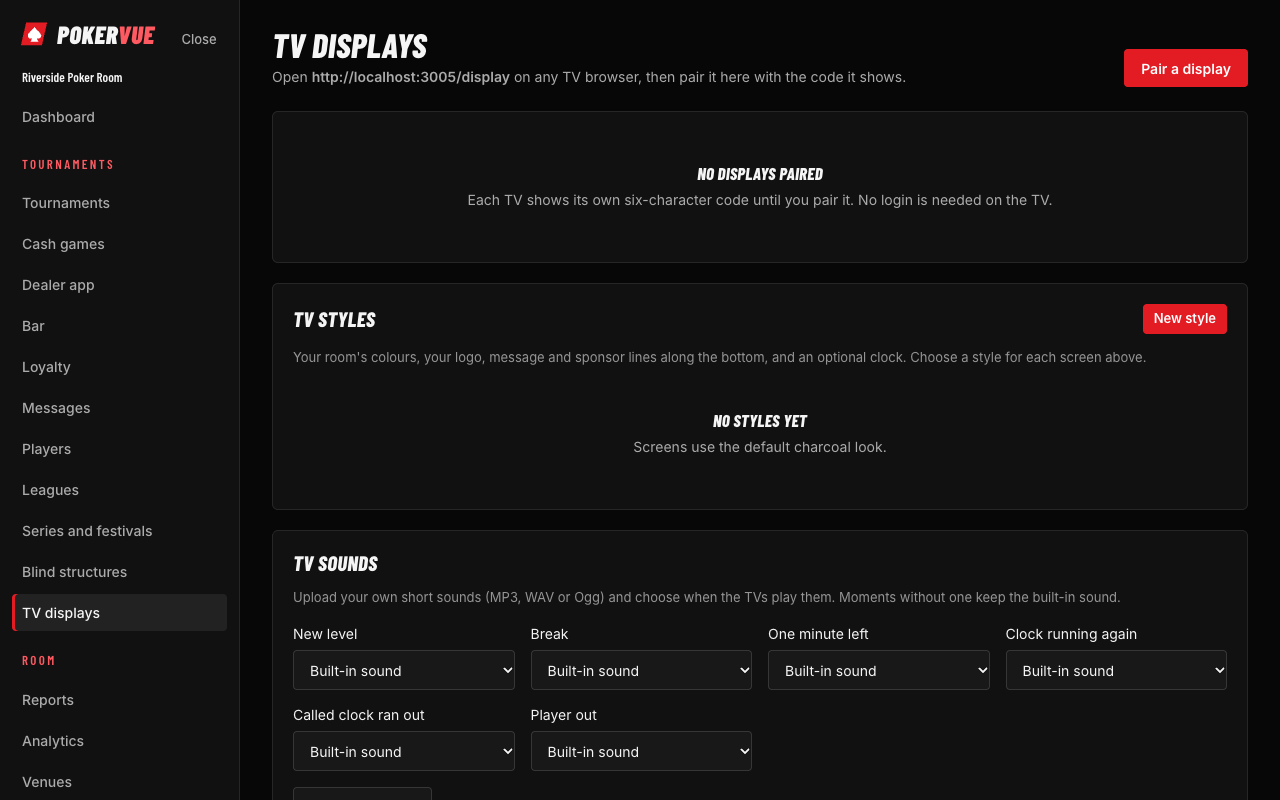
Open TV displays. Each TV is a display. Open the display address on any TV browser, a mini PC or a stick; the TV shows a pairing code and a QR code. Enter the code (or scan the QR) in TV displays to pair that screen with your room, give it a name, and choose what it shows.
- 1 The clock with level and blinds, as designed in the TV designer or a TV style.
- 2 Sponsor and message lines from your image library and the style.
- Layouts: the clock with blinds and prize pool, the room schedule, the list of players by name or by seat, the chip leaders, league standings, cash game tables and sponsor slides. A display can rotate between several slides.
- TV styles: colours, fonts, a background picture and sponsor logos from your image library. Create a style once and use it on every display. A TV designer lets you place the clock, the players left, the prize pool and your own message or sponsor lines wherever you want on the screen.
- Sounds: upload your own short sounds (MP3, WAV or Ogg) and choose when the TVs play them: new level, break, one minute left, clock running again, a called clock that ran out, a player out. Moments without one keep the built-in sound.
- Point a TV at a tournament: choose a tournament for several TVs at once, and take it off the others.
- A TV that loses internet keeps the correct time and says so on screen. It recovers by itself.
8.2 The floor phone
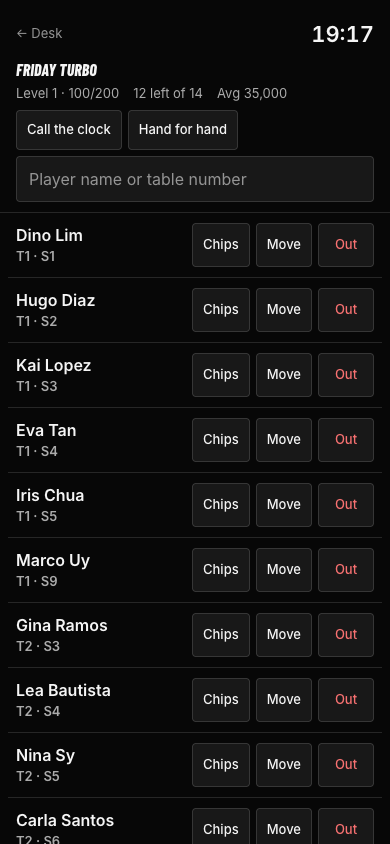
Staff walking the room can open the tournament's floor view on a phone. It is built for one thumb: find a player by name or table number, mark them out (with undo for a slip), take a chip count, move a seat, call the clock at a table, follow the prompts to balance tables or break a table, and switch on hand for hand. If the connection is lost, the buttons turn off until it is back. Everything else stays on the desk screen, and the same permissions apply.
Level 6 · 200/400 · 12:34
T3 · S5 · 62,000 chips2 OutChips
T1 · S2 · 48,500 chipsOutChips
- 1 Find a player by name or table number.
- 2 Mark out (undo is kept for a slip), take a chip count, move a seat.
- 3 Call the clock at a table, or switch on hand for hand.
- 4 Prompts to balance tables or break a table.
8.3 The live page for players
A tournament can have a public live page. Players open it on their own phone to see the clock, the level, players left, the prize pool, payouts, and the seats. It updates by itself. Share it with a link or a QR code from the control screen.
9. Cash games
Who: floor managers and above run cash games; administrators set up games; the monitor reads.
9.1 Set up a game
- Open Cash games and choose New game: name, venue, the game type (NLH, PLO, PLO5, Limit Hold'em, Mixed or Short Deck), the small and big blind, ante, optional straddle, the minimum and maximum buy-in and the seats per table. Limit and stud games also take small bet, big bet and bring-in. Give a floor name (for example "Main floor") if the cash TV screens should show one floor only.
- Choose how the room earns rake:
- No rake.
- Share of each pot: a percentage, an optional cap, and rounding down to the smallest chip (or tick Round the rake up instead of down).
- Fixed amount per hand: taken from every hand that sees a flop.
- Time charge per player: an amount every number of minutes a player sits. Optionally players pay the first charge as they sit down.
- Time charge per table: one charge for the whole table, collected by the dealer.
- Optionally give points per hour or per session for loyalty, and a minimum number of minutes to earn them. Changing the points applies only to sessions that end from then on.
- Choose how the waiting list behaves: Minutes to come when called, what happens to a called player who is not there in time (keep their place, move down one place, move to the bottom, or take them off the list), how many calls before they leave, and whether to text the player when called (on every call or on the first call only, with your own wording or the standard text). Two switches save work: check-ins go on the waiting list automatically when no seat is free, and the next waiting player is called as soon as someone checks out.
- To use the dealer app for hands, tick Record hands and, if you like, A hand can end with no rake (no flop, no drop) and The dealer must give the board or how far the hand went.
9.2 Tables, seats and the waiting list
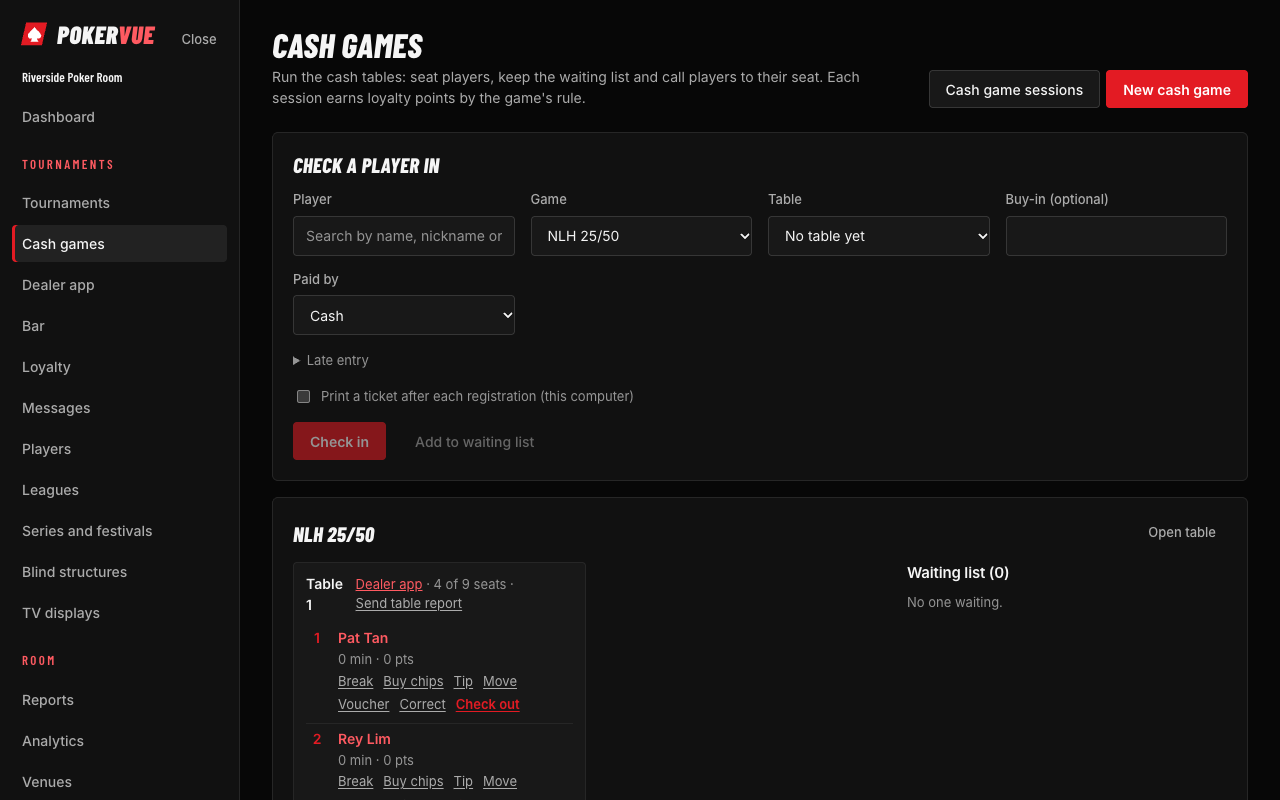
- 1Check a player in: player, game, table, buy-in and how they paid.
- 2A table with its seats: who sits where and for how long.
- 3Per player: Break, Buy chips, Tip, Move, Voucher, Correct and Check out.
- 4The waiting list: Call, Call again, Down one, Seat.
- Open table for a game, giving it a name and the seats. Then check a player in: search by name, nickname or member number, choose the game, the table and a seat (or Draw a free seat), an optional buy-in and how it was paid (cash, card, transfer, other, player account or credit). Players can be moved between tables.
- Waiting list: Add to waiting list at the desk, or let linked players join from their phone (section 20.4). Each entry shows how long the player has waited. Call a player to a free seat; Call again, Down one, To the bottom or Remove as needed; Seat them at a table. A text can go to the player, and the list shows whether it was sent. Text messages need an SMS sender (section 10.3).
- Table changes: a seated player who wants another table of the same game is put on the table change list from their seat, for one table in particular or for any table. The request shows on the seat, under the waiting list in the order asked, and at the table wanted (Wanted by). Move the player when a seat frees up and the request clears by itself; Withdraw removes it.
- Game changes: a player at one game can be added to the waiting list of another, say the 1/2 player waiting for the 2/5 game. The list shows where they are playing. Seat them from the list when a seat is free: their session moves to the new table and game in one step, so their time and chips stay together.
- Seat holds: Hold an open seat for a player on their way (from the tournament, from the bar) or for anyone with a note, for so many minutes or until released. Nobody else is drawn into a held seat, and the player it is held for gets it when they check in. Release frees it.
- Breaks: record a break for a player so time rake stops counting while they are away.
- Close table when the game ends; the sessions at it are ended.
- A manager can add a late entry for a player who was not checked in on time, by giving the time they actually sat down.
Floor plan. The Floor plan card on Cash games draws the venue as it is: Draw the plan once (owners and administrators), adding tables with their names, choosing oval, round or rectangular, and dragging them into place, with labels for the bar or the cage. From then on the plan shows what is on each table right now, matched by name: an open cash table in its game's colour with players seated of seats and how many are waiting, a table of a running tournament in red, an empty table grey. A table opens its dealer app or tournament with a click.
9.3 Sessions, chips and rake
Each time a player sits down, a session starts. While they play, use Buy chips to add more, with how it was paid. When they leave, choose Check out and record the chips cashed out (leave it empty if you do not count the chips). A player who bought on credit and still owes is shown, with the amount owed, and the checkout asks how much was paid now. The session keeps the time played, the rake, the points and the result. A manager can correct a session or remove it (a removed session earns no points); points are worked out again from the new times, and every correction is kept in the activity log and shown on the cash sheet.
The page also shows the rake and tips of the last 24 hours, the sessions checked out in the last 24 hours, and, for time-rake games, a rake estimate for what is due.
Chip bank. The Chip bank card on Cash games keeps the chips behind the desk straight. Start by counting what the cage holds. From then on the records follow every buy-in (chips out) and cash-out (chips in) on their own; the floor adds a fill when a rack goes to a table and a credit when chips come back (a colour-up, a table closing), so each table's rack is shown too. At any time, type what was counted: the card shows at once whether the bank is over or short against the records, saves the count with the difference, and the records start again from what was counted. A manager can void a line entered by mistake. The activity log keeps every fill, credit and count. Counting by chip: list the room's chip values in Settings (room rules) and the count asks how many chips of each value were counted, adds them up, and keeps the lines with the count, so the cage sees what it is short of, not only how much.
Petty cash. The Petty cash card, under the chip bank, keeps the small cash box at the desk straight in the same way. Count what is in the box to start; from then on the desk records money put in (from the safe, from the night's takings) and money taken out for an expense, with a category (supplies, food and drink, transport, staff, tips paid out, repairs, other) and a note. The card shows what the box should hold by the records, the last count and whether it was over or short, and the last 30 days' spending by category. A manager can void a line and download the lines of the last 30 days as CSV for the books. Every line is in the activity log.
9.4 The dealer app
Who: anyone with the cash operate permission (owner, administrator, floor manager, or a custom role).
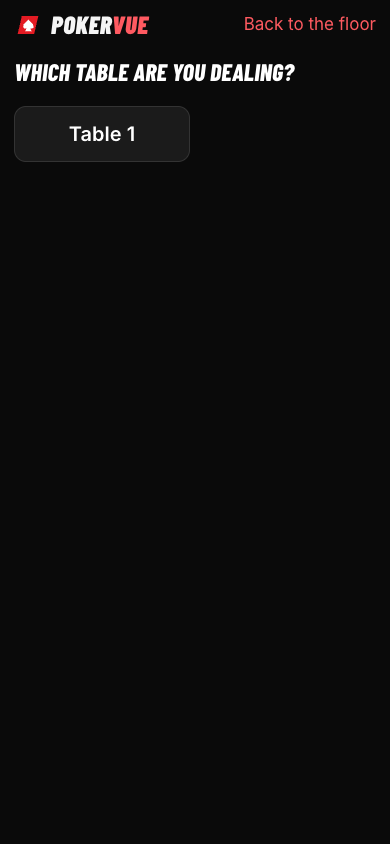
Open Dealer app from the menu and choose the table you are dealing. The screen is made for a tablet at the table and shows today's hands, rake and tips for that table, and each seat with the player, the time played and an On break mark.
Table 1 · NLH 1/2 · Change table
42
1,260
300
- 1 Today's hands, rake and tips for this table.
- 2 The pot keypad. The rake is worked out for you from the game's rule.
- 3 Hand done records the hand; No flop, no drop records it with no rake. The last hand shows with Undo.
- 4 Tips, and the seats with time played. Time-rake games show a Collect button per player.
- Hand done (when the game records hands): type the pot on the keypad; the rake is worked out for you. Mark how far the hand went (flop, turn or river), type the board (for example
Ah Kd 7c) and, if you wish, tap the players in the hand. Use No flop, no drop when no rake is taken. The last hand shows with an Undo. - Tip: type an amount and say whether it came from the table or from one player.
- Collect the time charge: for a per-player time game each seat shows the amount due; for a per-table game the screen shows the table's charge due.
- If the connection is lost, actions are queued and sent when it comes back (section 22).
9.5 Table reports and the rake count
For control, the floor can send a report on a running table at any time: it records the rake counted by hand (cash in the box), a short note, and who counted. The system saves it next to the rake the software recorded for the same table and how many players were seated. The owner or monitor sees both numbers side by side under the cash game reports, so any gap is visible the same day.
Dealer shifts and the tip pool. A dealer's shift starts when they pick a table in the dealer app (or with Start my shift here) and ends with End shift; moving to another table is a push. On Cash games, Dealers on shift shows who is at which table, for how long, with a push-due mark after 30 minutes at one table, and lets the floor push or end a shift. Tips entered at a table go to the dealer on shift there. Tip pool (cash managers) takes a period, a split (by hours dealt, by hands dealt or equally) and what the house keeps, and shows each dealer's share, with a CSV to download.
Dealer rotation. Under Settings, Dealer rotation: push every sets how long a dealer deals at one table (30 minutes unless you change it). The Dealers on shift card then shows when the next push is due, each dealer's next table (one table along, in table order, the last back to the first) and which tables would be left without a dealer; Push all dealers moves everyone at once, while a dealer on a break stays where they are. In the dealer app, each dealer sees their next table and how long until the push.
Promotions: high hand and bad-beat jackpot. On Cash games, Promotions (cash managers) sets up a High hand (a prize every window, say every hour, for the best hand of at least the lowest qualifying hand, for one game or all) or a Bad-beat jackpot (a jackpot fed by every recorded hand, split between the loser, the winner and the table when a qualifying hand loses). Dealers record a qualifying hand in the dealer app with Record hand: the player at the table, the hand (category and ranks) and, for a bad beat, the winner, their hand and the pot. The cash TVs show the hand to beat and the jackpot; when a window ends, the floor presses Pay on the winning hand (cash, or into the player's account), and a bad beat's split is proposed from the percentages. The jackpot can be seeded or corrected by hand; everything lands in the activity log.
9.6 Periods and closing
- Cash periods group sessions into a shift or a week. Reports and leagues can be based on a period.
- Closing adds up the rake, the buy-ins and the cash-outs of a period, and shows the cash that should be in the drawer.
9.7 Showing cash games to the public
If the room chooses to list its cash games (Settings, public page profile), visitors see each game's stakes, how many tables run it, how many are playing, how many are waiting, and how many open seats there are. Names of players are never shown.
10. Bar, loyalty and messages
10.1 Bar
Who: floor managers and above sell; administrators manage products.
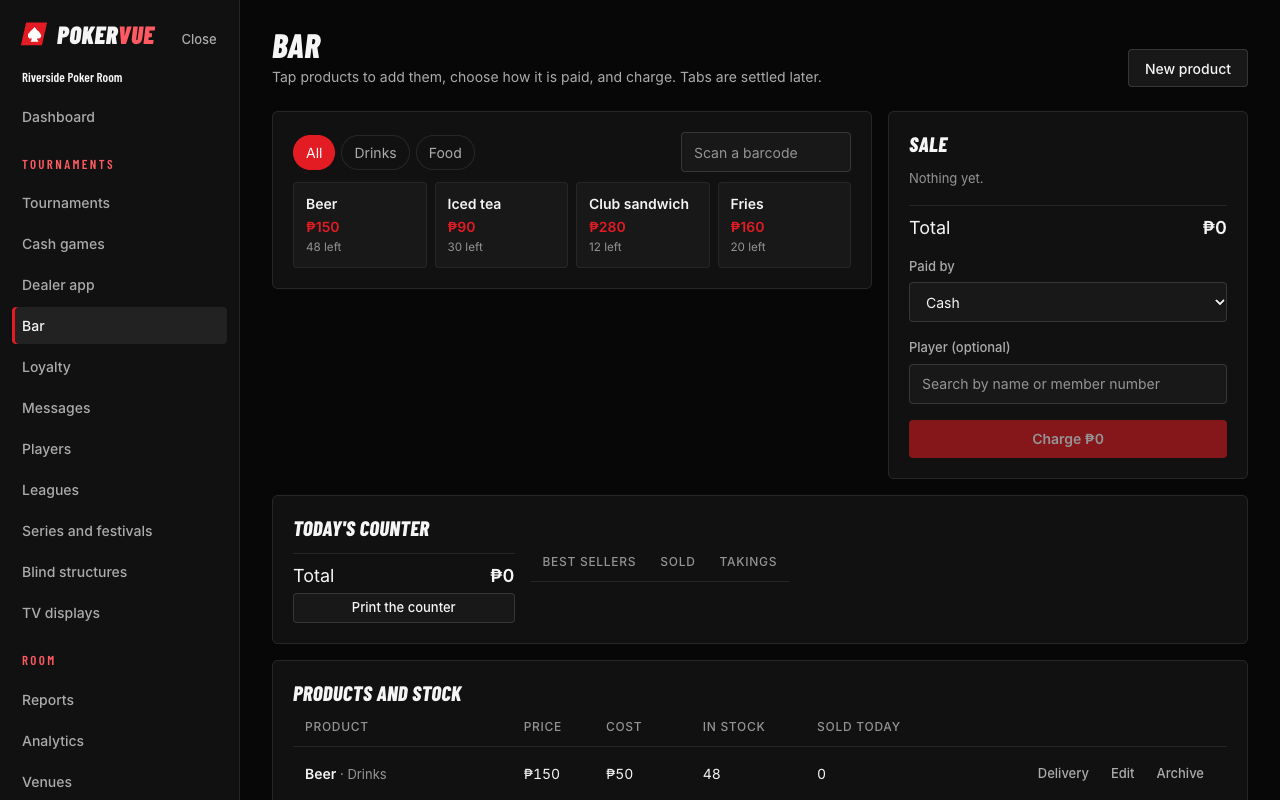
- Products and stock: add drinks and food with a price and a stock level.
- Sale: tap products to add them, choose how it is paid, and charge. A sale can go on a player's tab, settled later, or be charged to the player's room account where the room uses accounts.
- Open tabs lists unsettled tabs. Sales in the last 24 hours lets you check the till.
- Vouchers (comps): the room gives a player a voucher worth an amount at the bar, from the player's page or with Voucher on a cash seat: a meal for a regular, a drink after a bad beat. When that player is chosen on a sale, their open vouchers are offered and the one picked comes off the total; whatever the voucher does not cover is paid as usual. A voucher is spent on one sale, and what is left of a voucher bigger than the sale is lost. Used at the desk marks one used outside the bar; undoing a sale gives its voucher back. The Vouchers card on Bar lists the open ones and those used lately, and a manager can cancel one not yet used.
- Vouchers earned at the tables: under Settings, set Cash play voucher after so many hours, with the amount and a name. A player who checks out of a cash game after at least that long at the tables (breaks do not count) gets the voucher at once, once per session.
10.2 Loyalty
Who: administrators and owners manage; everyone with access can look.
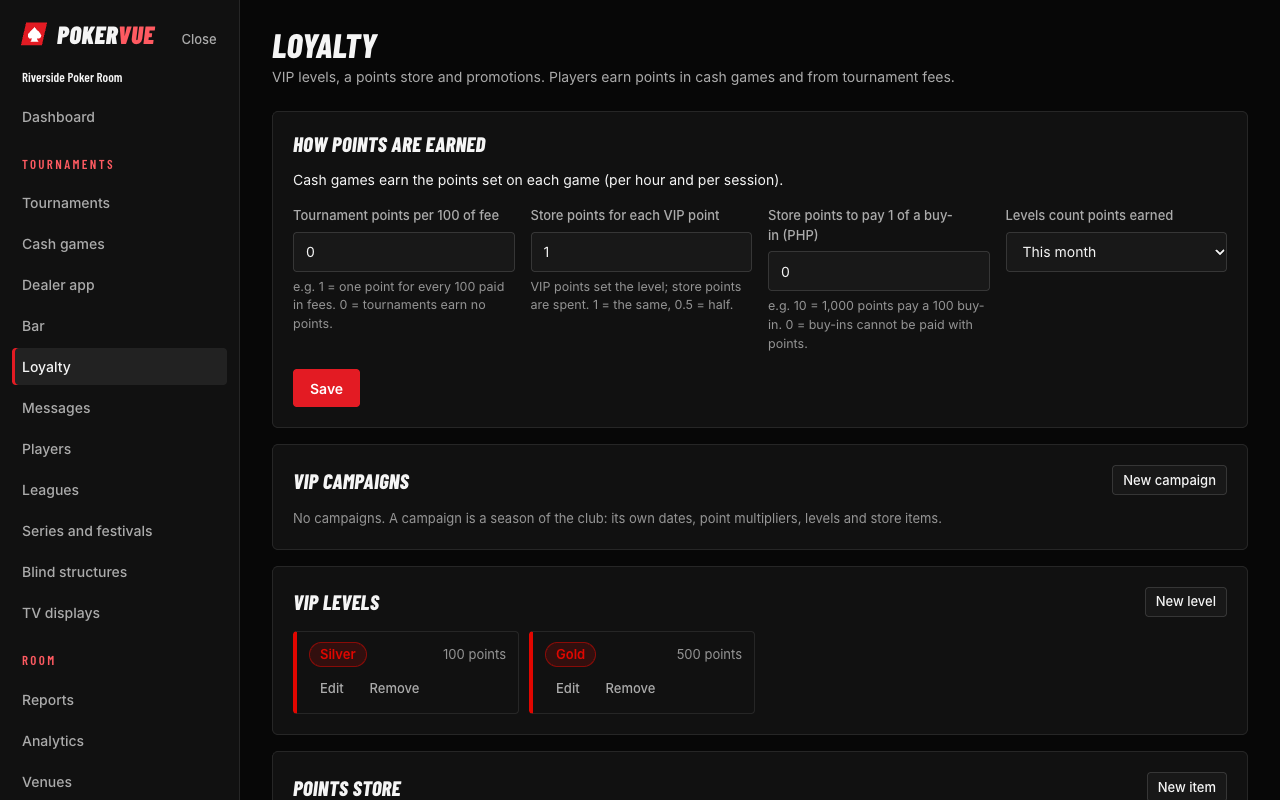
Open Loyalty: VIP levels, a points store and promotions. Players earn points in cash games and from tournament fees.
- How points are earned: tournament points per 100 of fee (0 means tournaments earn nothing), cash points per hour or per session (set on each cash game, section 9.1), how many store points each VIP point gives, and how many store points pay 1 of a buy-in. VIP points set the player's level; store points are spent.
- VIP levels: name each level and the points it needs, with optional perks (for example free drinks or priority on the waiting list). Choose whether levels count points earned this month or this year.
- Points store: items players can buy with store points, such as a free drink or a tournament ticket that pays a buy-in of a chosen value. Items can have stock, can be limited to a VIP level and above, and can be sold only while a campaign runs. Store sales lists what was redeemed; each sale lowers the player's balance and is recorded.
- VIP campaigns (for example "2027 season"): a period with its own multipliers for VIP points, store points and player points, optionally its own levels and store items. While a campaign runs, the points earned in it set the level.
- Promotions (for example "Double points Sunday"): multiply points for a period, for tournaments or for cash sessions that end during it, for one game or all cash games.
- A player sees their cash points per room in My poker (section 20.2).
Refer a friend. On a new player's page, the desk names the player who brought them in (the Refer a friend card). When the new player first plays, a tournament entry or a cash session, the room's rule rewards both at once: points to the friend who brought them, points to the new player, and a bar voucher for the friend, as set under Settings → Games and tournament rules (leave all at 0 for no program). The reward is given once; after it, the referrer can no longer be changed. The Loyalty page shows who brings the most players, this year or all time, and a player's page lists the players they brought and whether each has played yet.
10.3 Messages
Who: people with permission to send marketing and to see private player details.
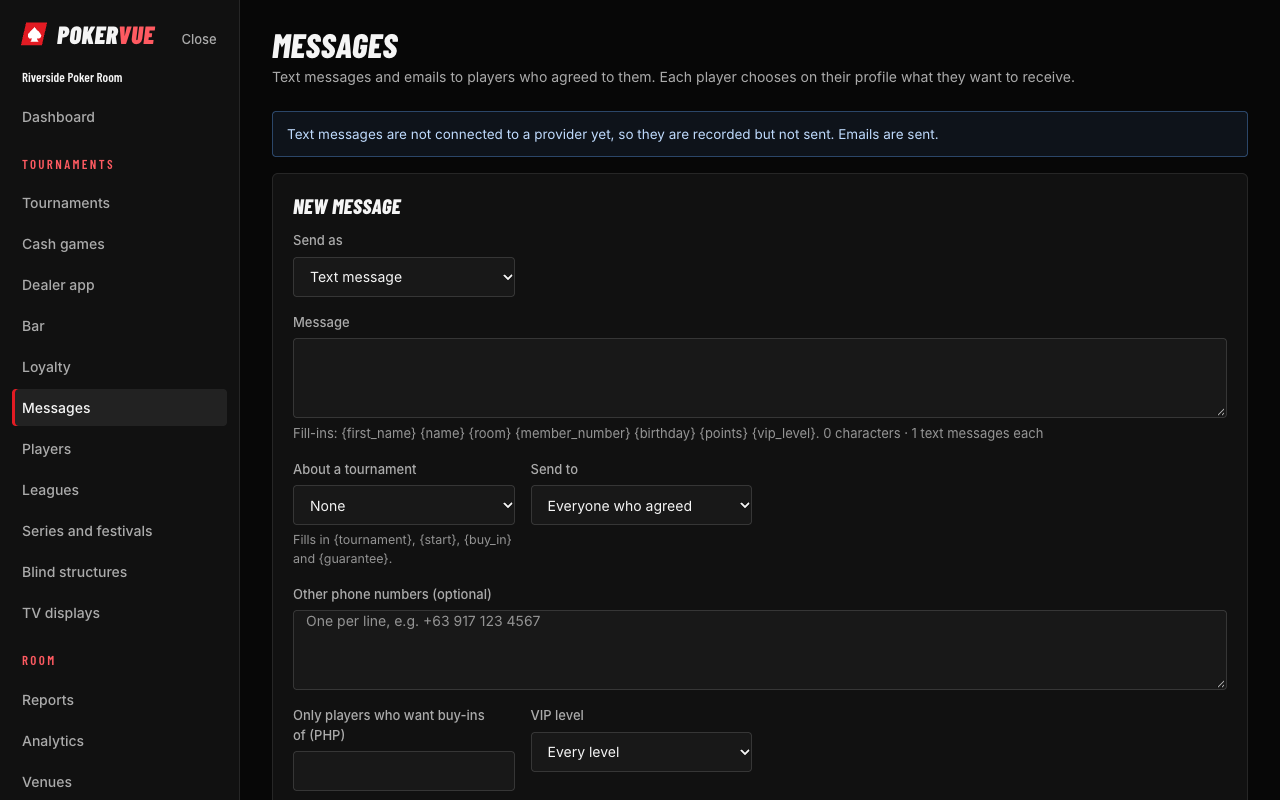
Send an email or text message to groups of players: everyone, members of a league, players of a game, or those who have played recently. Players who have not agreed to emails or texts are left out automatically. Text messages need an SMS sender set up for the room; until then, only email is available. Every message sent is logged.
11. Players and leagues
11.1 Players
Who: everyone sees names and nicknames; private details need the private-details permission.
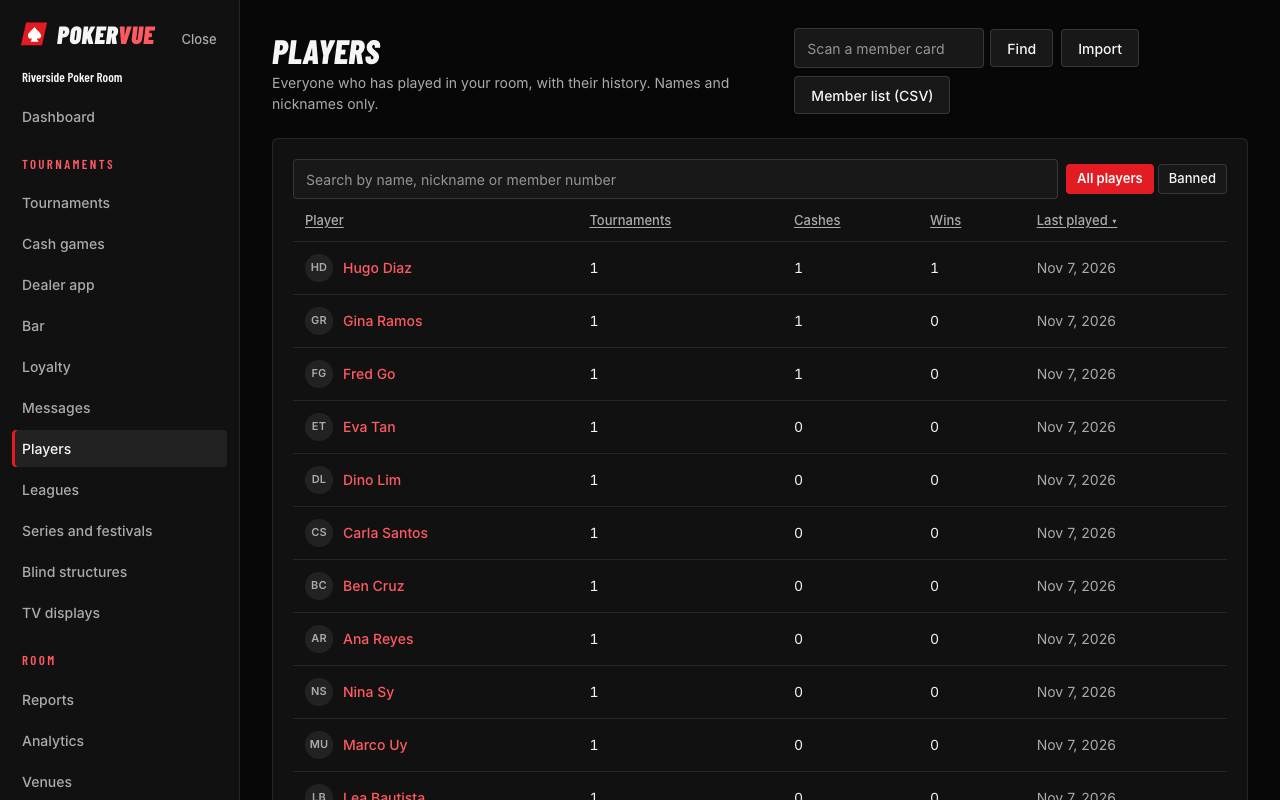
The Players list holds everyone who has played in your room, with their full history: tournaments, cash sessions, bounties won, leagues, loyalty points and bookings.
- Add a player with a name and nickname. A member number links a person to their online account.
- Details: birthday, ID type and number, contact, address, city, source ("how did you hear about us"), and whether they agreed to emails and texts. A room can mark some fields as required at registration.
- Notes, alerts and files: a private note, an alert that shows to staff at registration, and attached files such as an ID photo. These are only for staff with the private-details permission.
- Bans: a ban stops registration and cash seating, with a reason and optional end date.
- Venue card numbers: give a player a different card number for each venue.
- Import players from a spreadsheet. Save the column mapping as a template for next time.
- Hide on public pages: a player can ask to be shown without a name on public pages. Tick it on their record.
- Privacy requests (a person asks for a copy of their data or to be erased) are handled from the player's record and are logged. An erased player's name is replaced by "Erased player" in results and exports, while entries and prizes stay in the money records.
- Scan a member card: a card reader or camera finds the player at once (the room sets where the member number sits on the card under Settings).
- Merge a duplicate: if a person was entered twice, merge the second record into the right one; their histories join.
- Players asking to link their account: when a player asks to connect their POKERVUE account to your room, the request appears at the top of the Players page. Check that the member number is theirs, then approve. Once approved, they see their own results and league points in My poker (section 20).
- Player account (money held): where the room keeps money for a player, player account appears as a way to pay at the desk, the bar and cash tables. Staff with the accounts permission (owners, administrators, floor managers) can use it. Under Reports, Player money shows what players hold now and the money in and out for a period, with a CSV download; Player statistics (owners and administrators) shows played, cashes, wins, average finish and net by period.
11.2 Leagues
Who: administrators and owners create; everyone with access can look.
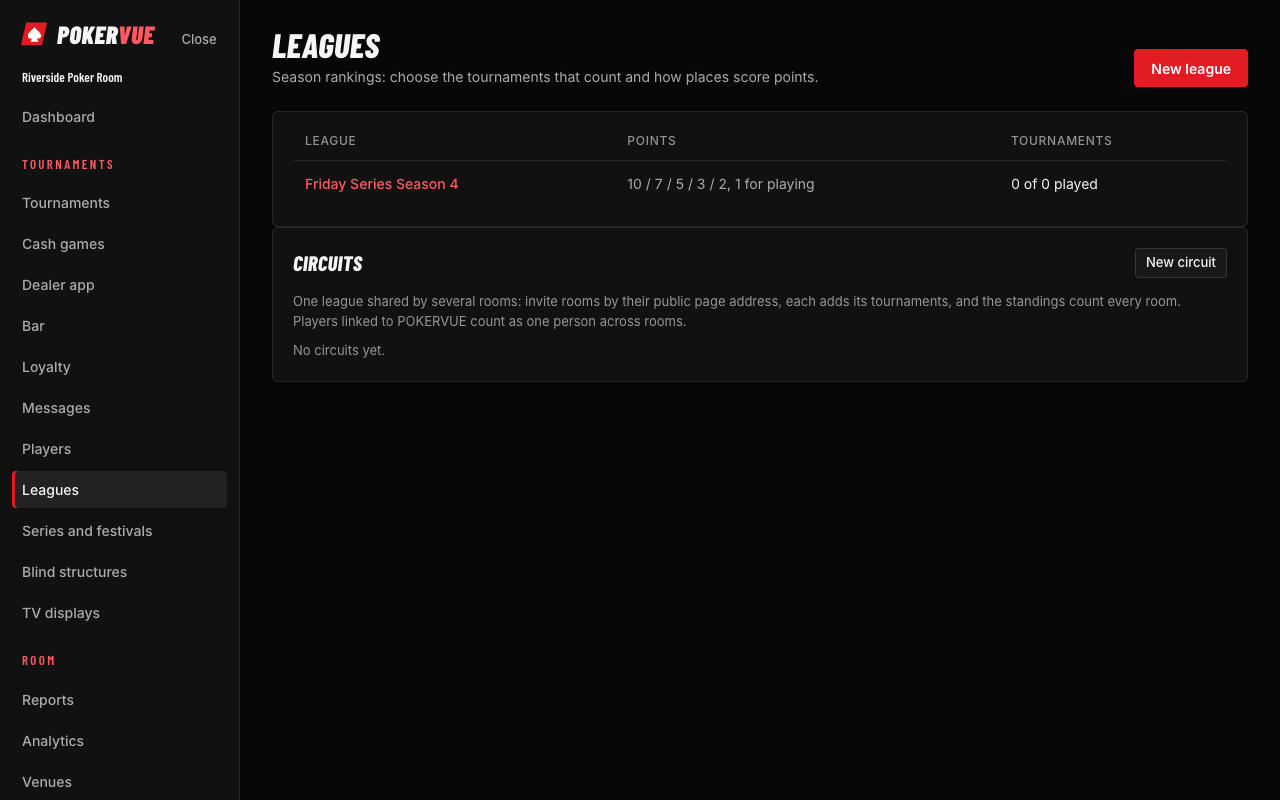
A league ranks players over many tournaments (and, if you like, cash play).
- Points: a table of points by place, a participation point, or a custom formula using the number of players, the place and the buy-in. Choose best N results to count.
- Fill automatically: set a date range, a tag (such as "Monday"), a sex filter if you run a ladies league, or a series. New tournaments that match join the league by themselves.
- Cash points: score cash play by hours, with a rate per hour or a formula using the hours and the big blind, limited to chosen cash periods.
- Adjustments: add or remove points with a written reason.
- Publish the league on the public room page, choose how many places show, and which columns (played, wins, cashes, best).
Circuits: one league across several rooms. Under Leagues, Circuits lets a host room create a shared ranking (name, dates, points as participation + base × √(field ÷ place), optionally the best N results) and invite other rooms by the address of their public page. An invited room sees the invitation on its own Leagues page and joins or declines; each member then ticks its own tournaments with Choose ours. The standings count every room's results, and a player who linked their POKERVUE account counts as one person across rooms. Every circuit has a public page at /circuit/<name> with standings, rooms and tournaments. Only the host changes the settings, removes rooms or archives the circuit; a room can leave at any time, taking its tournaments with it.
12. Series and festivals
Who: administrators and owners.
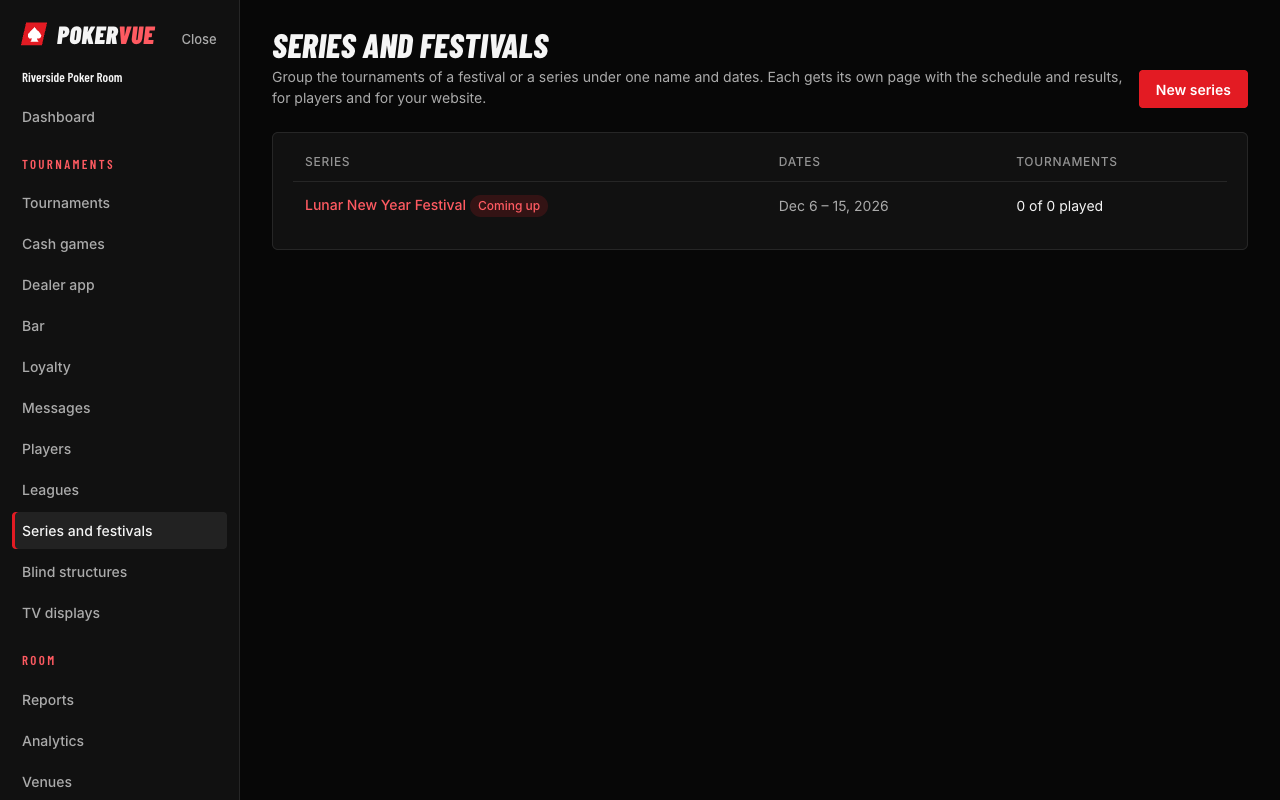
A series (or festival) groups tournaments under a name and dates, like "Manila Halloween Bounty Festival". Open Series and festivals.
- Create the series with a name, start and end dates, and a short description.
- Choose the tournaments that belong to it (the list tool lets you tick them). Add flights too if you want them to appear in the festival card.
- Choose how it looks to visitors: the plain List, or the Day grid. Your website embed can ask for either one.
- Turn the series page on to publish it, and share the link or the embed code (section 18.3).
12.1 What visitors see
- Day grid: day buttons across the top (All days, 29 Thu, 30 Fri…), a search box for the event name, number or player, and one card per event with its time, status (Coming up, Running, Completed), buy-in and guarantee. Finished events show the champion and photo.
- The page chooses itself: a grid on a computer, a single easy column on a phone.
- Event details opens inside the card: a real-time clock, level, players left, entries, prize pool and results.
Series also give you event numbers and a festival total (entries and prize pool) on the series page.
13. Reports, analytics and the activity log
13.1 Reports
Who: administrators, owners and monitors (anyone who may manage tournaments or read reports).
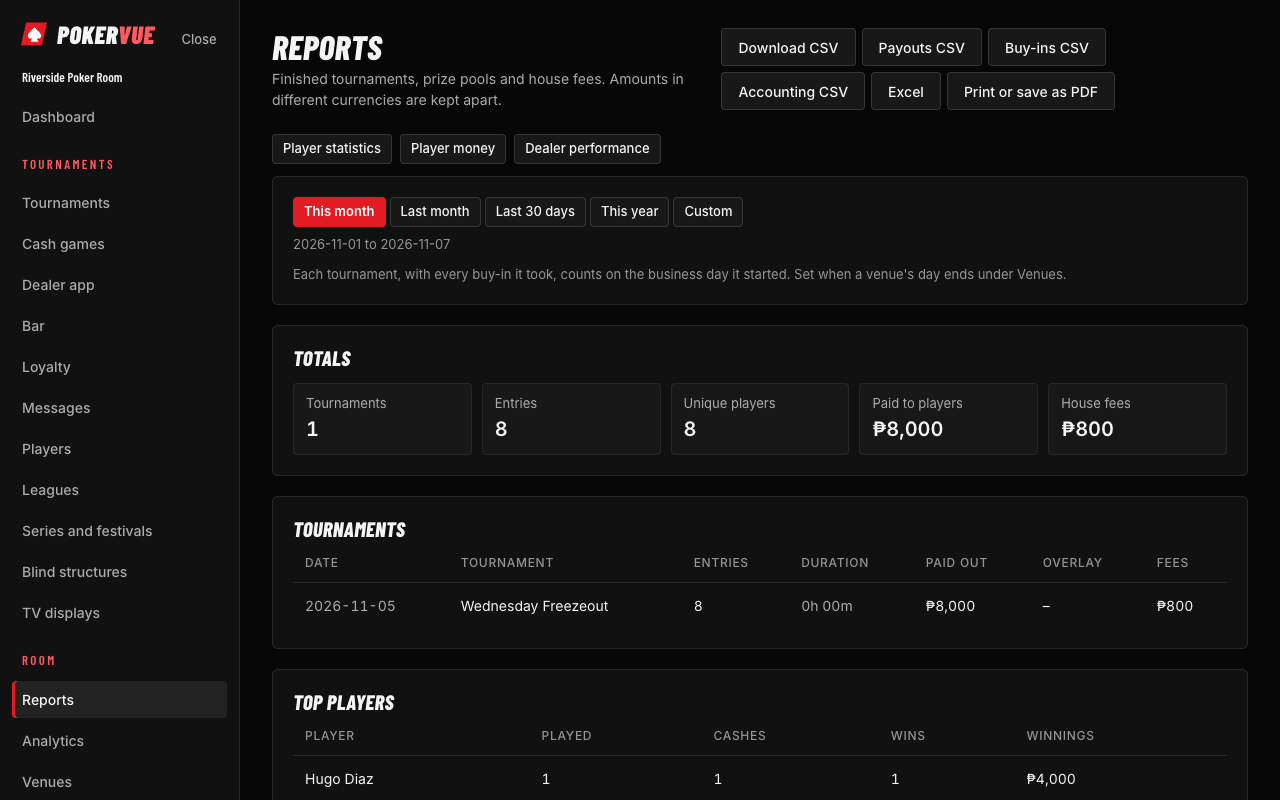
- Summary: for a date range, the tournaments, entries, prize pool and fees by currency.
- Tournament, cash and bar reports: money in by payment method, rake, sales and balances.
- Excel downloads for every report. The business day follows the venue's time zone.
- Scheduled email: the owner can ask for a daily, weekly or monthly summary by email (Settings, Email the owners a report). It lists the tournaments of the period and, under The rest of the room, anything worth knowing: the incidents logged (and how many were critical), follow-ups past their due date, the staff hours clocked, the checklists not done in full on the last day, and the items running low. Whatever there is none of is left out, and the section is left out altogether in a quiet room.
Accounting export. On Reports, Accounting CSV downloads one line per day, venue, account and payment method for the period: tournament buy-ins and fees, rebuys and add-ons, prizes paid, cash game rake and time charges, dealer tips, bar sales, player deposits, withdrawals and bonuses, and promotion payouts. Amounts are whole currency units and money out is negative, so the file goes straight into Xero, QuickBooks or a spreadsheet. Owners and anyone who sees reports can download it.
13.2 Analytics
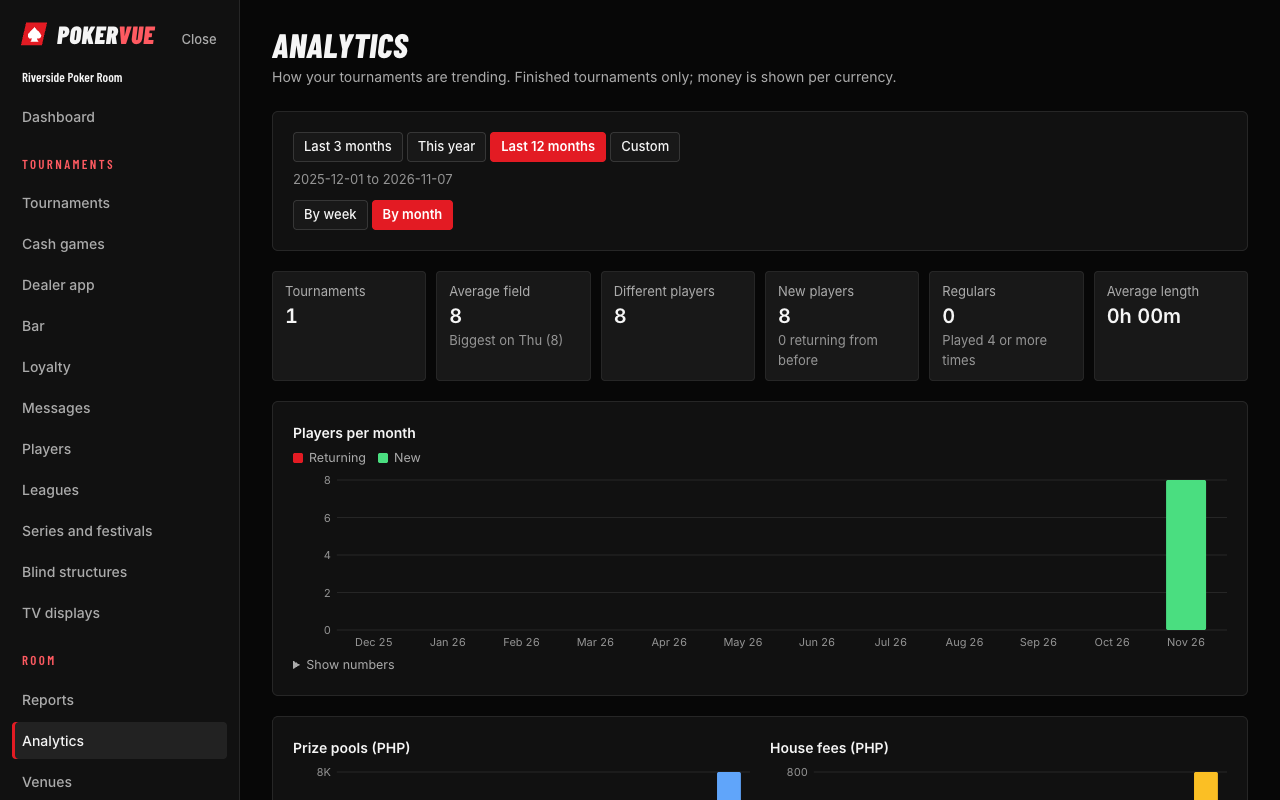
Charts of entries over time, busiest days, average field size, returning players and new players, per venue and period. Use it to decide which nights to keep or change.
13.3 Activity log
Who: owners, administrators and monitors.
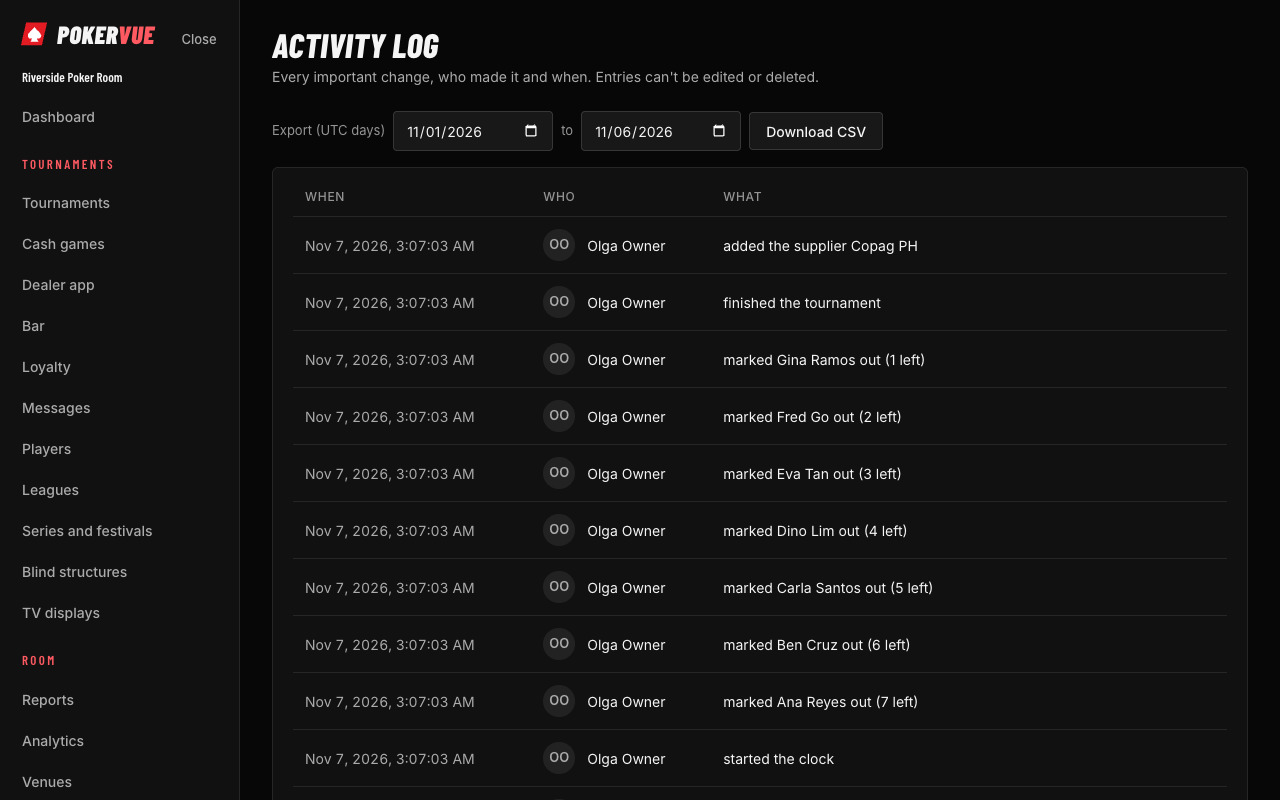
Every important action (registering, voiding, changing a role, moderating a review, changing a setting) is written to the log with who did it, when, and a plain sentence on what changed. Filter by person, action or date. Private details are not repeated in the log.
14. For the boss: the Monitor role
Who: an owner gives the Monitor role from the Team page.
A monitor is an administrator who can look at everything and change nothing. It is meant for the owner or boss who checks the room without risking a wrong click.
| A monitor can | A monitor cannot |
|---|---|
| See every venue of the room, running cash games and tournaments, tables and sessions | Create, edit or delete tournaments, games, players or settings |
| Read reports, analytics and the activity log | Register players, take buy-ins or end sessions |
| See private player details and the cash floor | Change the team, roles, plan or integrations |
| Read the table reports that the floor sent, with the rake counted next to the rake recorded | Send a table report (only the floor does) |
The Cash games page shows the running tables with who is seated, and the dashboard shows live tournaments. Open Reports for the day's totals, and the table reports for the rake count against the system rake.
15. Team, roles and venues
Who: owners and administrators.
15.1 Members and invitations
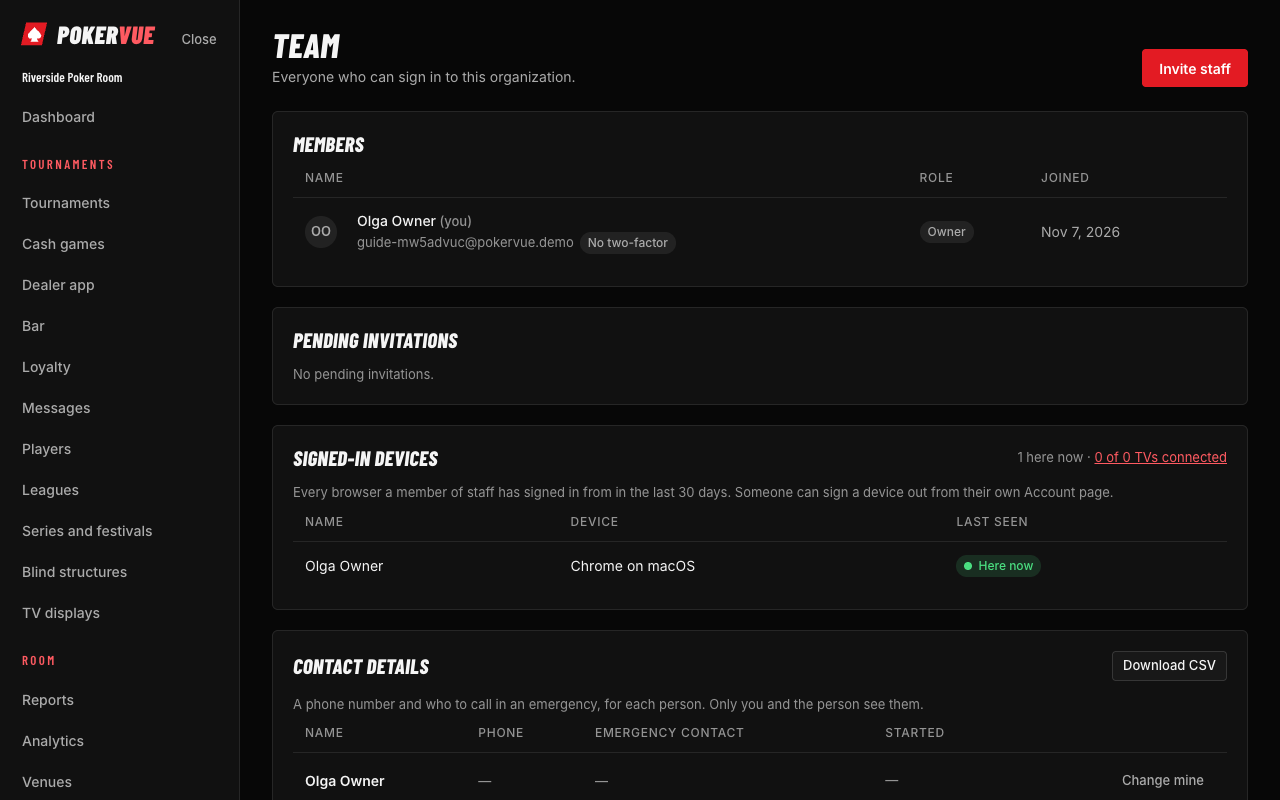
- Open Team and choose Invite. Enter an email address and choose the role.
- The person gets an email with a link. Until they accept, the invitation appears under Pending invitations, where you can Resend or cancel it.
- To change a role or remove someone, use the member's row. You can only give a role whose permissions you hold yourself, and only an owner can change an owner.
Signed-in devices. Owners and administrators see, at the top of the Team page, every browser a member of staff has signed in from in the last 30 days (Chrome on Windows, Safari on iOS), when it was last seen and who is here now, plus how many TV displays are connected. A member signs a device out from their own Account page.
15.2 Custom roles
Under Roles, create a role with a name and tick the permissions: for example "Cashier" with registration and the bar, or "Dealer supervisor" with cash operate. A role that is in use cannot be deleted; move its members to another role first.
15.3 Roles for a single venue
A member's access can be limited to certain venues, with a different role in each venue. For example, a floor manager in Venue A and read-only in Venue B.
15.4 Venues
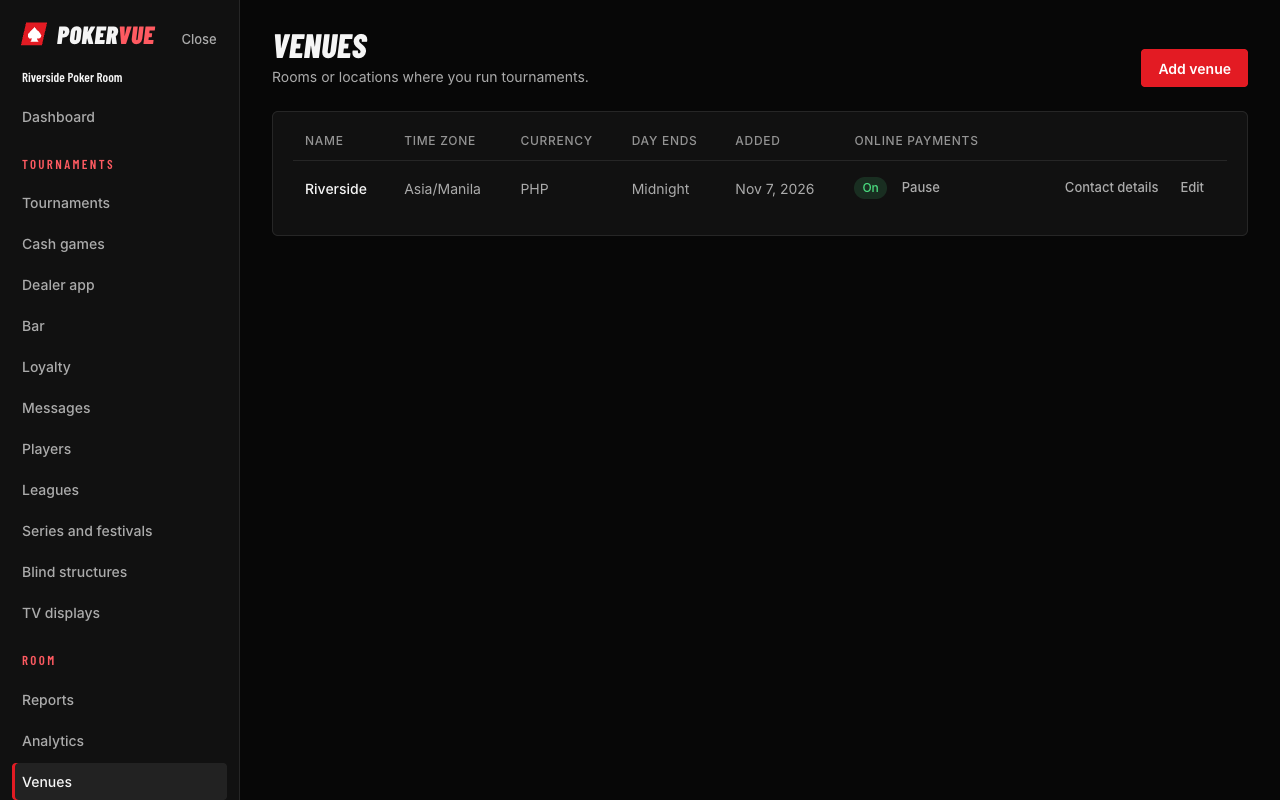
Open Venues to add a venue (club) with its name, time zone and currency, and to edit its contact details: address, phone, email, website, city, country, tax ID, a ticket name for receipts, an SMS sender name, a short description and the public name. Each club can also have its own Facebook, Instagram and X links; they show under that club's address on the public room page.
15.5 Support access
Under Settings, an owner can invite platform support for one hour up to a week, to look or to look and make changes. Support can never touch the team, API keys or billing. A banner tells everyone when support is in the room.
15.6 The time clock and the timesheet
Who: everyone on the team clocks in and out; owners and administrators see the timesheet and correct shifts.
The Time clock card on the dashboard is where staff clock in when they arrive, choosing their post (desk, floor, dealer, bar, manager or other) and the venue when the room has several, and clock out when they leave. Everyone sees who is on the clock and since when. A manager can clock someone else in or out. Dealers' time at the tables is still followed by the dealer app (section 9.4); the time clock is everyone's working hours.
On Team, the Timesheet adds the hours up for a period, per person and by post, with every shift listed and the hours planned on the rota beside them (a gap of more than half an hour is marked). A shift still open counts to now. Correct a shift when someone forgot to clock out or chose the wrong post, and Download CSV for payroll.
The rota. Also on Team, the Rota shows the week's planned shifts, a row per person and a column per day. Owners and administrators click a day to plan a shift (who, post, day, from and to, with an end before the start meaning the next day, the venue and a note) and a shift to change or remove it; two shifts of one person cannot overlap. Copy last week fills the week from the one before, skipping anything that would clash. Everyone sees the rota, and the Time clock card on the dashboard tells each person their next planned shift and offers its post when they clock in.
Publishing the rota. When the week's rota is ready, press Publish the week on the rota card. Each person with a shift that week is emailed their own shifts (day, hours, post, venue and note), in their own language and the venue's time; people with no shift get nothing. The card then says when the week was last published and to how many people. Publishing again after a change sends everyone their shifts again. Members can also keep their shifts in their phone's calendar (section 15.23).
Shift reminders. Under Settings, Remind staff before a shift asks the room to email each person their shift a set time before it starts (1, 2, 3, 6, 12 or 24 hours; Never is the default). The email gives the day, hours, post, venue and note, in the person's own language and the venue's time, and is sent once. A shift whose time or person changes (including one taken over in a swap) is reminded about again for the new time or person.
Pay rates and wages. Owners and administrators can set each person's hourly rate with the Pay rates button on the timesheet: type the rate in the currency's main unit (12.50) and the three-letter currency, and Save; Clear takes it off. The timesheet then shows each person's rate and wages, the hours clocked in the period at that rate, and the total for the period for each currency. It is an estimate from the hours, not a payslip. The CSV carries the same columns. Rates are seen only by owners and administrators, and the activity log records who set or cleared one.
Time off. Also on Team, the Time off card shows who is away and when. Anyone can ask for time off (first and last day, a reason); owners and administrators approve or decline each request, with a note, or add time off for someone directly, which is approved at once. Approved days keep the rota honest: planning a shift on a day off is refused. A member can cancel their own request or approved time off before it starts; a manager can cancel any. Declined and cancelled requests stay visible to the person and the managers. The activity log records every request and decision.
Email for time off. The owners and administrators get an email when a member asks for time off, with the dates, the reason and a link to decide it. The member gets one when the request is approved or declined (with the manager's note), and when a manager records time off for them.
15.7 Licences and documents
Who: owners and administrators keep the whole team's; every member keeps their own and sees only their own.
Keep each member's gaming licence, identity document, contract or training certificate here: its number, when it was issued, when it expires, a note, and the scan (a PDF or image under 2 MB). Click Add a document and choose the member and the kind. Documents list with the soonest expiry first; one expiring within a month shows with a warning, an expired one in red. Every download of a scan goes in the activity log, as player files do.
Reminders. A month before a document expires, a week before, and once it has expired, the member and the room's owners and administrators get an email, each once. Set the new expiry date when the document is renewed and the reminders start again from the new date.
15.8 The incident log
Who: floor managers, the desk and the bar log incidents and add notes; owners, administrators and cash managers close and reopen them. Read-only members do not see the log, because an incident names players and what they did.
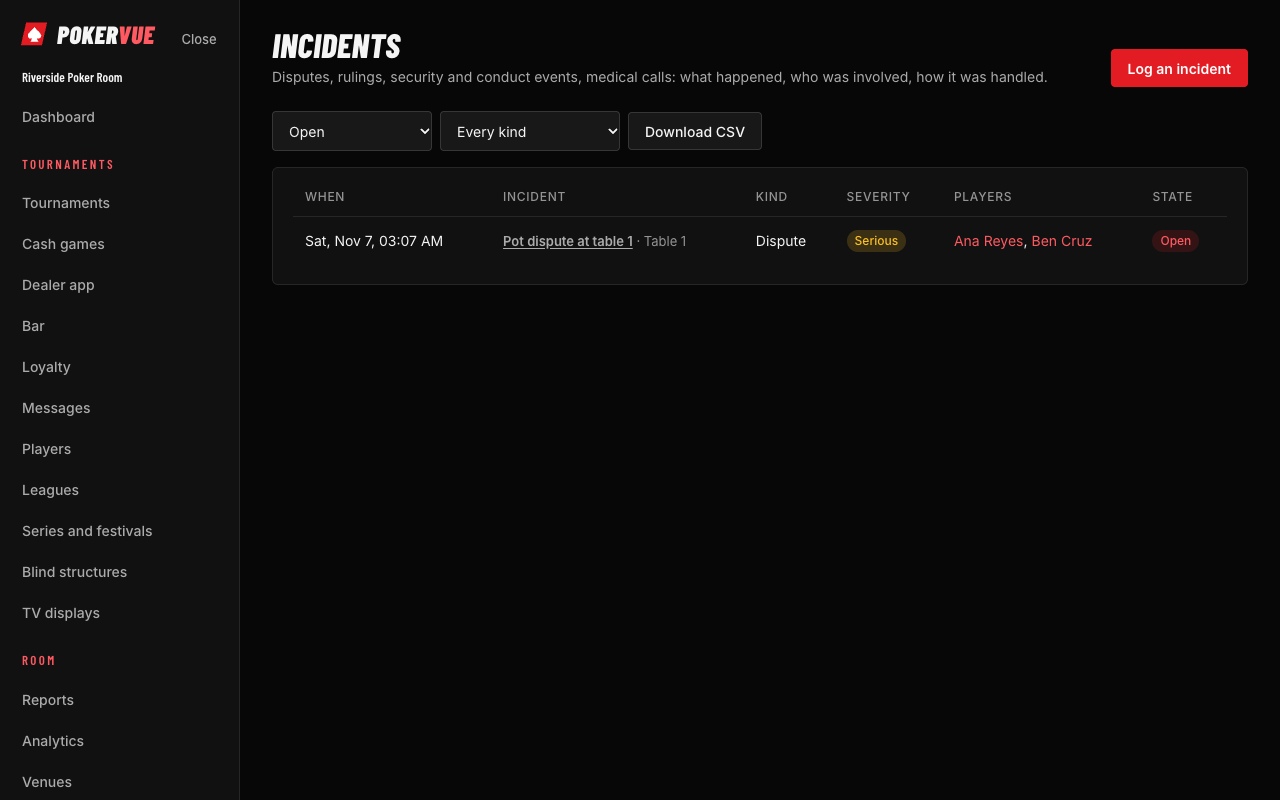
When something goes wrong on the floor, log it while it is fresh: a dispute over a pot, a floor ruling worth remembering, a security or conduct event, a medical call. Click Log an incident and give it a kind, a severity (minor, serious, critical), a few words of title, when and where it happened, the venue and tournament if any, the players involved (search and add as many as it takes) and the details: what each side said, what the dealer saw, what was done on the spot. You can also log one from the Incidents card on a player's page, with that player already attached.
An incident stays open until a manager closes it with the outcome: the ruling, the penalty, what was agreed. Anyone who can log may add notes as the matter moves along, open or closed. Whoever logged an incident can correct it while it is open; after that only a manager can change it, and a manager can reopen a closed one. The log shows open incidents first; switch to Closed or All for the archive, filter by kind, and Download CSV for the whole log. The activity log records who logged, changed, noted, closed and reopened each incident.
A player's page lists every incident they were part of, open or closed, so a pattern shows before the next one.
Follow-ups. Things to do after an incident (talk to the player, review the camera, replace the cloth) go in the incident's Follow-ups: write what is to be done, choose who it is for (or anyone) and an optional due date, and Add. The person it is for is emailed, and sees it in the Your follow-ups card on their dashboard until they tick it as done; whoever added it and the managers can tick it too, and ticking it again undoes it. A follow-up past its due date shows as Overdue, and the list of incidents shows how many follow-ups each one still has open. The day after its due date, if it is still open, the person it is for gets one reminder email. Closing an incident does not remove its follow-ups. The activity log records each one added and done.
15.9 The shift handover
Who: floor managers and the desk write handovers and tick items; anyone who sees reports may read the log. Read-only members do not see it.
At the end of a shift, the manager going home writes what the next one needs to know: how the night went, what to watch, who to call. Click Hand over the shift and the notes are kept with the room as it stood at that moment: tables open, players seated and waiting, tournaments running, open incidents, the chip bank and petty cash by the records, and staff on the clock. The Right now strip at the top shows the same figures live, so the incoming manager can compare what was handed over with what they find.
Open items are the things for the next shift to do: order chips, call a dealer, fix the TV. Add one at any time; tick it when it is done, by whoever does it. An item stays on the list across handovers until it is ticked, and a ticked one can be reopened. The incoming manager clicks Acknowledge on the latest handover to say they have read it; the handover then shows who acknowledged it and when. Each venue has its own log. The activity log records who handed over, acknowledged, raised and ticked items.
15.10 The maintenance log
Who: everyone on the team reads it and reports; owners, administrators and managers of the venue, the tournaments or the cash games assign, close and reopen.
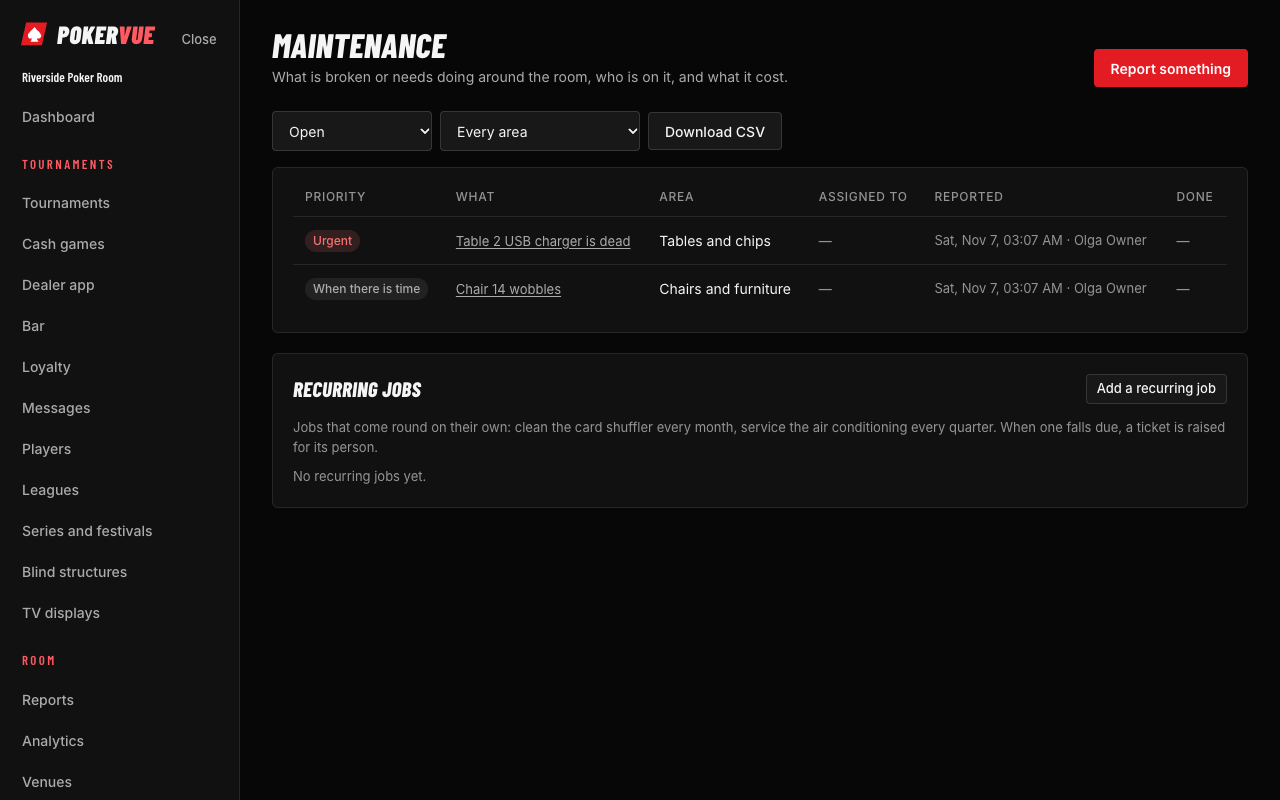
When something is broken or needs doing, Report something: a TV that lost its signal, a torn table felt, a wobbly chair, a dripping tap. Give it a few words, where it is, the area (tables and chips, TVs and screens, chairs and furniture, bar and kitchen, building and utilities, computers and network) and a priority (urgent, this week, when there is time). A manager assigns it to someone; the ticket then shows under their name. Anyone adds notes as it moves along.
The manager or the person it is assigned to marks it done with what was done and what it cost, so the month's repairs add up; Download CSV gives the whole log with the costs for the books. Open tickets list first, urgent ones on top; switch to Done or All for the archive and filter by area. A manager can reopen a ticket. The activity log records who reported, assigned, noted, closed and reopened each one.
Recurring jobs. Some jobs come round on their own: clean the card shuffler every month, service the air conditioning every quarter. Under the tickets, the Recurring jobs card lists them. A manager chooses Add a recurring job, says what needs doing, the area, the priority, how often (every week, two weeks, month, 3 or 6 months, year, or a number of days), when it is next due, who it is for and how to do it. When that day comes, a maintenance ticket is raised by itself, assigned to that person and marked Routine, and the person is emailed. The next due date moves on by the interval. If the last ticket of a job is still open when the next one falls due, no second ticket is raised, so tickets never pile up. Raise it now raises the ticket straight away (the next one is then an interval from today), Change edits the job and Stop ends it, keeping its tickets. The card shows when each job was last done.
15.11 The notice board
Who: owners and administrators post; everyone reads.
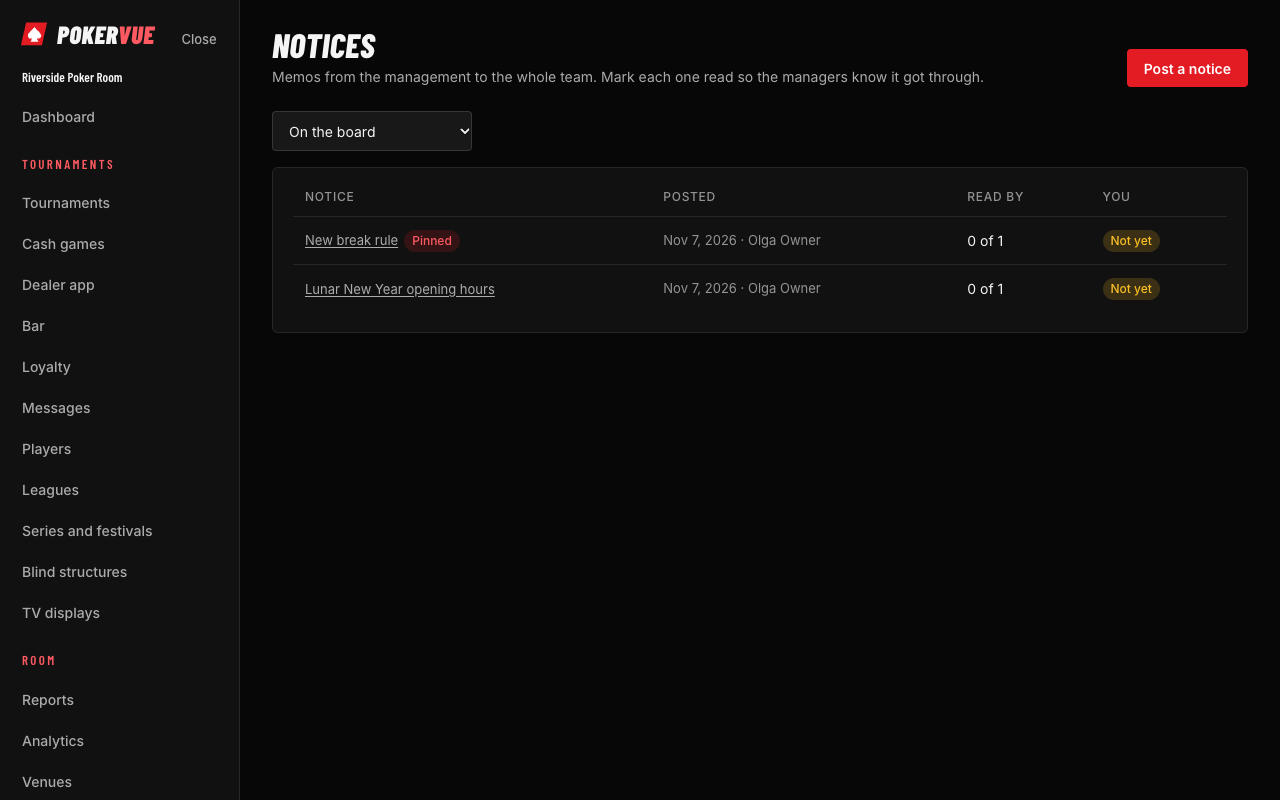
When the whole team needs to know something, Post a notice: a new house rule, a change of hours, what to know before a festival. A notice can be pinned to the top and can lapse on a date, after which it leaves the board on its own. Each member sees the notices they have not read yet on their dashboard and clicks Got it; the card goes away once everything is read. The Notices page lists the board with how many of the team have read each notice, and a manager opening one sees who has and who has not, so a rule nobody read is caught before it matters. A manager can change a notice or archive it; the archive stays available to managers. The activity log records who posted, changed, archived and read each notice.
15.12 Lost and found
Who: everyone reads it; floor managers, the desk and the bar log, return and dispose.
When something is left behind, Log something found: what it is, where and when it was found, where it is kept (the desk drawer, the office safe), the player it belongs to when you know, and a note. Items still held list first. When the owner comes, open the item and Mark returned with who took it; when nobody comes, Dispose of it. Either can be undone with Back on the shelf. Filter by state, and Download CSV for the whole log. The activity log records who logged, changed, returned and disposed of each item.
15.13 Supplies and stock
Who: everyone reads the shelf; floor managers, the desk and the bar move stock; owners, administrators and managers add, change and archive items.
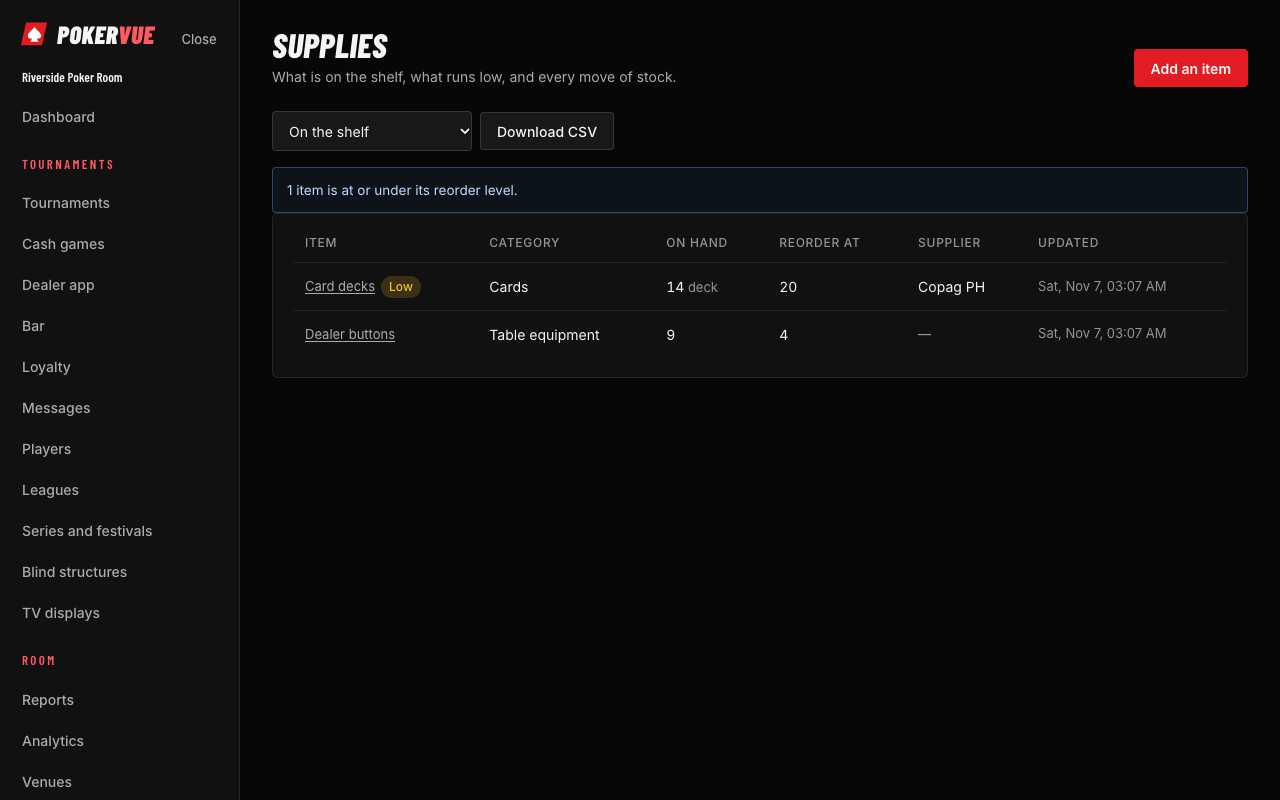
List what the room keeps on the shelf: card decks, chip sets and plaques, dealer buttons and cut cards, bar stock, office and cleaning supplies. Each item has a category, a unit, a supplier and a reorder level. Record a delivery (stock in), what was used or broken (stock out), or a count that sets what is there; every move is a line with who recorded it, so a count can be traced. An item at or under its reorder level shows as low, leads the list, and appears on the dashboard's Running low card so it gets ordered in time. Download CSV gives the shelf for the books; an item no longer stocked is archived. The activity log keeps every move.
Email when an item runs low. When an item drops to its reorder level, and the orders already placed for it would not bring it back above that level, the room's owners and administrators get one email naming it, with its supplier and a link to the Purchase orders page. Each item is mentioned once each time it runs low: restocking it above the level starts it over. A room that does not want these emails turns them off in Settings, under Email the owners and administrators when an item runs low.
15.14 Opening and closing checklists
Who: everyone reads the lists; floor managers, the desk and the bar tick them; owners, administrators and managers write and change them.
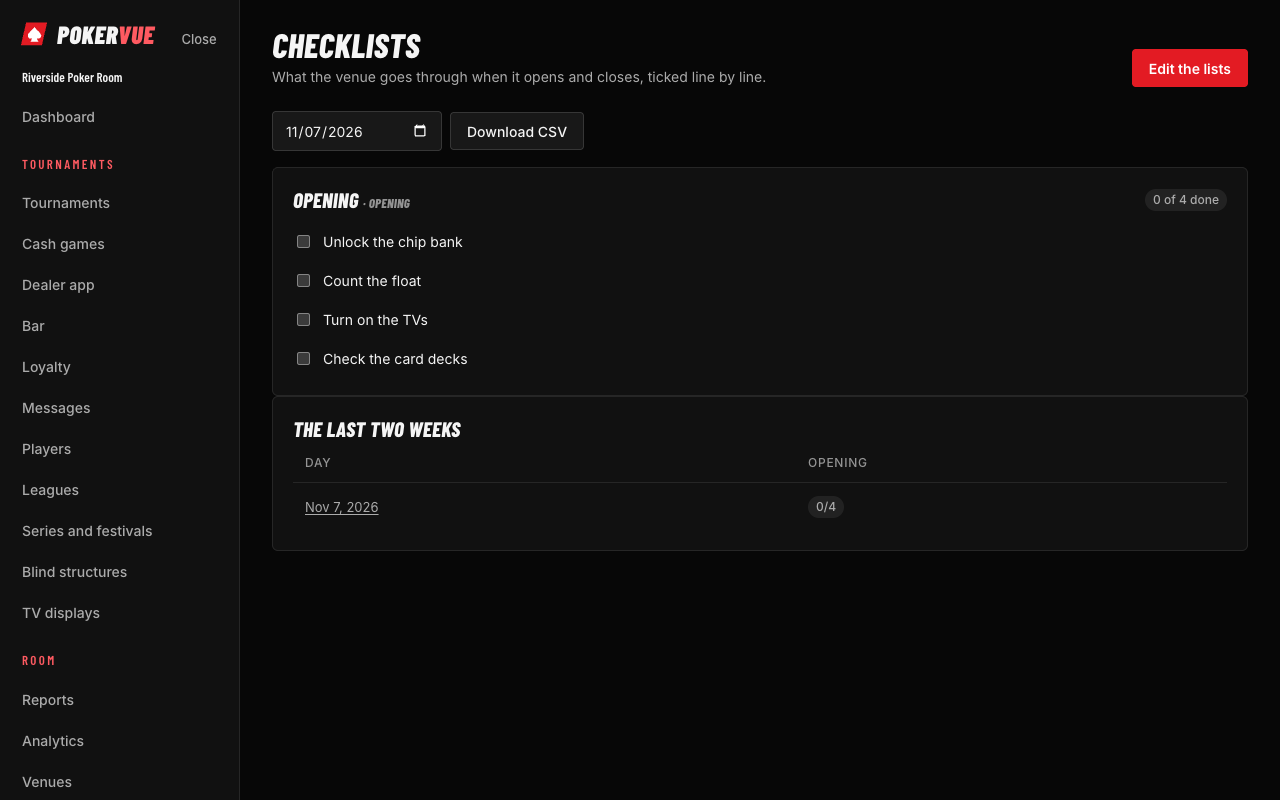
Write the lists the venue goes through every day: an opening list (unlock the chip bank, count the float, turn on the TVs), a closing list (count the bank, lock the tables, set the alarm) and any list for during the day. Each venue has its own lists, since a day is the venue's business day. On the Checklists page the day's lists appear in order, and the staff tick each line as it is done; the tick keeps who did it and when, and a note can be added to a ticked line (what was short, what was broken). The dashboard card shows how far today's lists have got, and the page's history shows the last two weeks, a cell per list and day, green when the list was done in full. Pick an earlier day to see or complete it; a day that has not come yet cannot be ticked.
Due times. A list can say by when it must be done each business day, in the venue's time (Done by, for instance 18:00 for the opening list). Once that time has passed and the list is not done in full, it shows as Overdue on the Checklists page and on the dashboard, and the room's owners and administrators get one email for it, once for each list and business day. A list is not reported for a due time that had already passed when it was set; the next day counts. A room that does not want these emails turns them off in Settings, under Email the owners and administrators when a checklist is overdue.
With Edit the lists a manager adds, changes, reorders or archives lists. Rewording a line keeps its past ticks; a line removed stays on the days it was ticked, so a past day always reads as it was. Download CSV gives every line of every day in the range, with who ticked it and at what time.
15.15 Training and sign-offs
Who: owners and administrators keep the list of skills; they and tournament managers sign members off; every member sees their own row.
List the skills the room trains its staff in, each in an area: dealing (no-limit hold'em, pot-limit Omaha, running a final table), the floor, the desk and cashier, the bar, safety and compliance. The card then shows a matrix of members and skills. Click a cell to record where a member stands: in training, or signed off on a date, by you, with a note on what was seen. A sign-off can carry an expiry for things that must be redone, such as a yearly responsible-gaming refresher; the cell turns amber a month before and red once it has passed. One record per member and skill: a new record replaces the old one, so a dealer sent back for retraining after a misdeal shows as in training again. Archiving a skill takes it off the matrix and keeps its records. Download CSV gives the whole matrix for an inspector or an audit.
Reminders. A sign-off with an expiry date reminds the people concerned by email: a month before it expires, a week before, and once it has expired, the member and the room's owners and administrators hear, once each time. Record the new sign-off (a new date, or a new expiry) and the reminders start over for the next one. Skills in training, sign-offs with no expiry and skills taken off the list send nothing.
15.16 Suppliers
Who: everyone reads the directory; owners, administrators and managers add, change and archive suppliers.
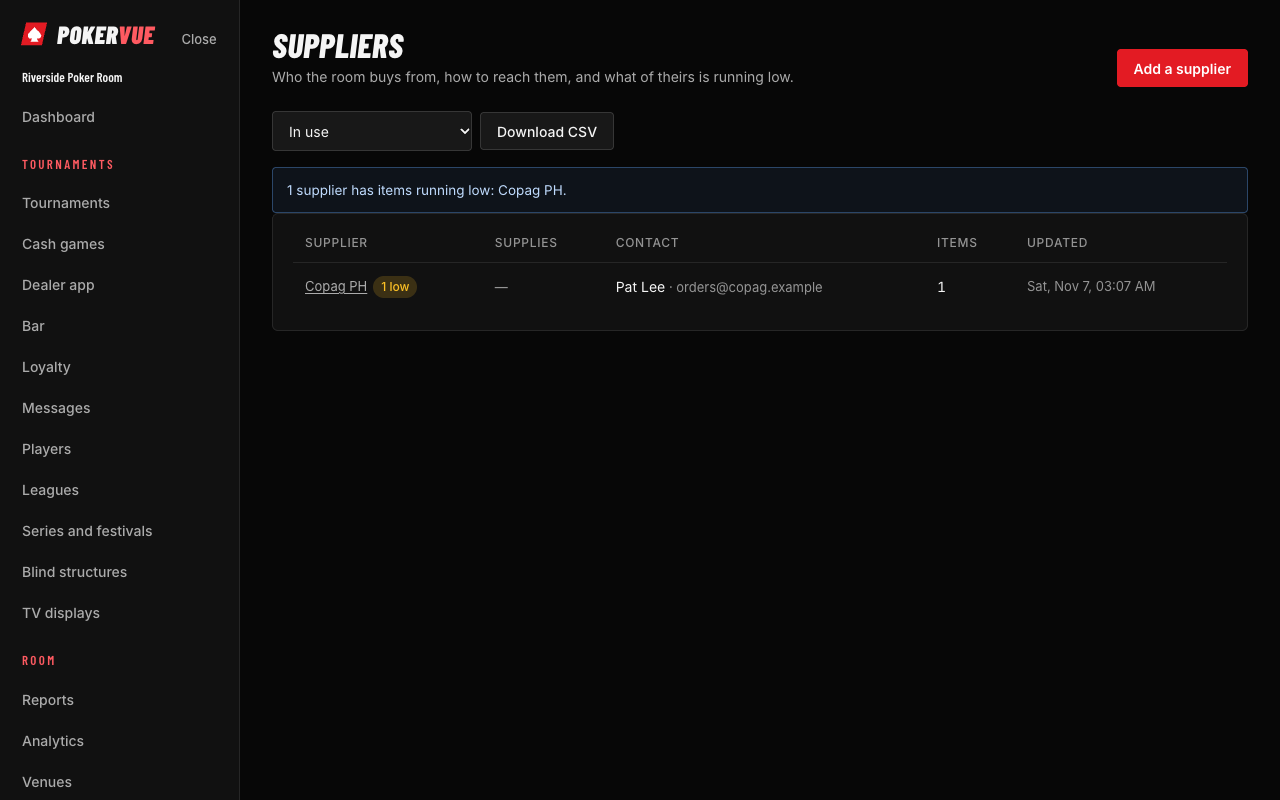
Keep the companies the room buys from in one place: the card maker, the chip supplier, the drinks wholesaler, the cleaner. Each supplier has a line on what they supply, a contact, phone, email and website, an address, your account reference with them, the payment terms and a note (delivery days, minimum order, who to ask for). Phone and email open the dialler and the mail client.
The directory and the shelf go together. When an item under Supplies names a supplier (the field offers the directory's names), the supplier's page lists every item bought from them with what is on hand, low items first, so the reorder call has the list ready; the directory shows how many of a supplier's items are low, and a note at the top names the suppliers to call. Renaming a supplier renames it on its items. Download CSV gives the directory with contacts and terms; a supplier no longer used is archived and keeps its page. The activity log records who added, changed and archived each supplier.
15.17 Dealer performance
Who: owners, administrators and cash game managers.
See how each dealer did over a period (the last 30 days, this month, last month, this year). For every dealer who started a shift or recorded a hand, the table shows the shifts and hours dealt, the hands recorded and the hands per hour, the average seconds per hand, the rake from those hands and the time charges they collected with the rake per hour, and the tips taken. Hands undone by mistake are counted apart as voided hands and left out of the other figures; a dealer with many of them may need a word. The strip above the table gives the room's totals. Hours come from the shifts the dealers started in the dealer app, so a dealer who records hands without starting a shift shows no hours and no rates. The time a dealer spent at the tournament tables (section 5.8) is a column of its own, Tournament hours, and is added to the room's Hours dealt; the hands and rates are those of the cash games. Download CSV gives the same table with a line for the whole room.
15.18 Purchase orders
Who: everyone reads the orders; owners, administrators and managers write, place and cancel them; floor managers, the desk and the bar record a delivery.
Order what the shelf needs from the suppliers of section 15.16. New order asks for the supplier and the items with a quantity each; Add what is low fills the order with the supplier's items that are at or under their reorder level, enough for twice that level, leaving out what is already on order. The order starts as a draft, which can be changed. Place the order when it is sent: from then on it cannot be changed, and each item shows how many are on order on the Supplies page and on the dashboard's Running low card, so nobody orders them twice. Copy the order puts it in plain words, and Email the supplier opens a message to the supplier's address with the order in it.
When a delivery comes, open the order and enter what came now for each line, then Record the delivery. Each line adds a delivery to the item's stock, with the order number in its note, so the count stays traceable; an order can be received in parts and shows how much of it has come. It is received when everything has come, or when you close it although part did not. An order nothing has come of can be cancelled. The list shows open orders by default; filter for received and cancelled ones. The activity log records who wrote, placed, received and cancelled each order.
15.19 Shift swaps
Who: everyone offers their own shifts and takes a colleague's; owners and administrators approve the swaps.
When someone cannot work a planned shift, they press Offer a shift, choose the shift (any of their own in the next four weeks), and say who it is offered to: anyone, or one colleague. A note can say why. The offer shows to the whole team with the day, the hours and the post. A colleague who can work it presses Take it; the system refuses when they already have a shift over it or a day off, or when the offer was for someone else. A taken offer then reads Waiting for approval, and a manager chooses Approve, which moves the shift to the colleague on the rota, or Decline, which leaves it with the person who offered it. Whoever offered the shift can Withdraw the offer until it is approved, and an offer lapses when the shift starts. The activity log records each offer, take, approval, decline and withdrawal.
Email. The people involved are told by email, in their own language: a colleague a shift is offered to, the owners and administrators when someone has taken a shift and the swap waits for them, and the two colleagues when the swap is approved or declined. A shift offered to anyone is not mailed to everybody; it waits on the card.
15.20 Availability
Who: everyone keeps their own; owners and administrators see and keep everyone's.
Availability is for the times a person cannot work week after week: a class on Tuesday evenings, another job at the weekend. It is separate from time off, which is for particular days. Change mine (or Change on another row, for a manager) lists the times: pick the day, from and to in the venue's time, with an optional note, and Add a time for another. The card shows each person's week at a glance, Monday to Sunday.
The rota uses it. Planning, moving or copying a shift over one of those times is not done silently: planning or moving a shift asks Plan the shift anyway? and the manager may go ahead; Copy last week leaves such a shift out and counts it as skipped. A shift past midnight counts on both days. In a shift swap (section 15.19), a colleague cannot take a shift over a time they cannot work. The activity log records who set someone's availability.
15.21 The staff handbook
Who: everyone reads the pages and confirms them; owners and administrators write the pages and see who has read them.
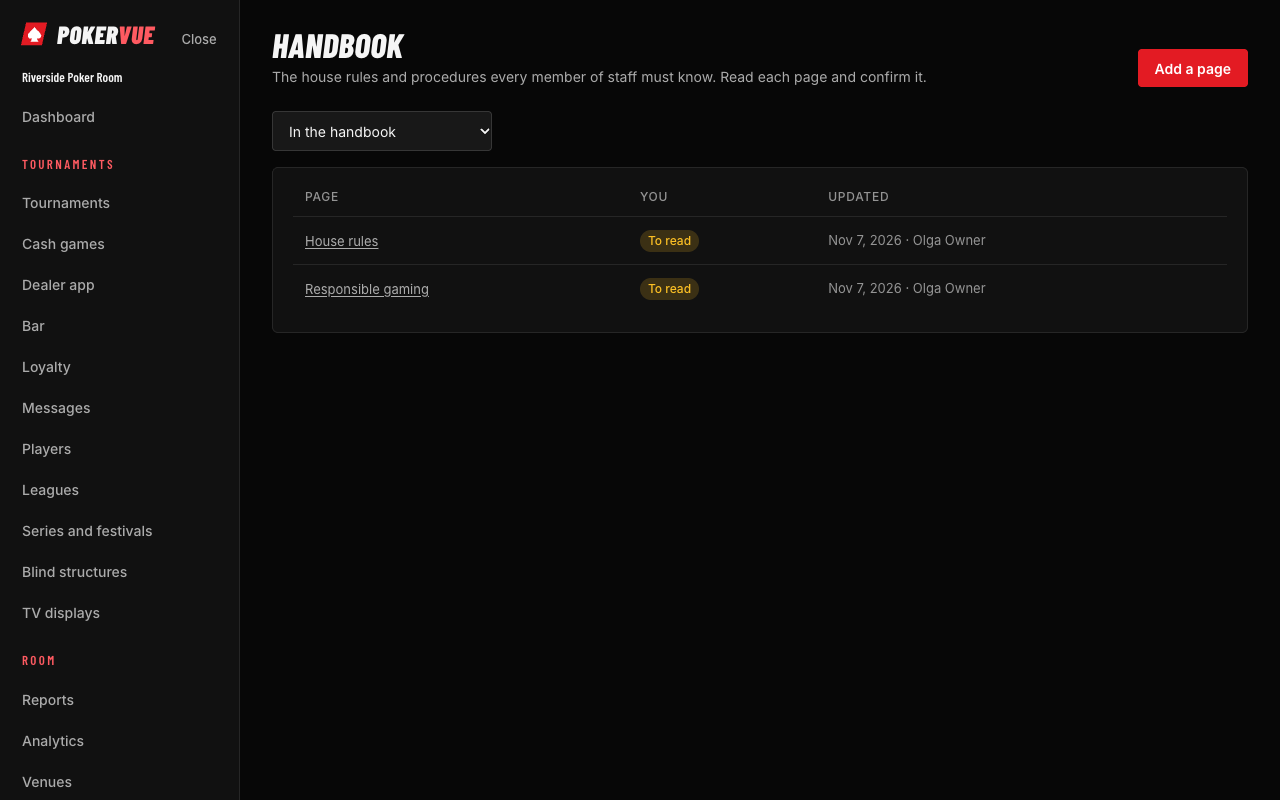
The handbook holds what every member of staff must know: the rules of the room, the responsible gambling policy, what to do in an emergency. A manager chooses Add a page, gives it a title and writes the text; Everyone must read it and confirm is on unless the page is only for information. Staff open a page, read it and press I have read this; the page then shows Read for them with the date. Until they have, it waits on their dashboard under Handbook to read.
When a page changes, a small change leaves everyone's confirmation as it is. A change that matters is saved with This change matters: everyone must read it again, and every member sees the page as Changed, read it again until they confirm it once more. Who has read it lists every member with the date they confirmed, and who has not yet, or read only an earlier version. A page no longer needed is archived: it leaves the handbook and cannot be confirmed, and managers can still see it under Including archived. The activity log records who added, changed and archived each page.
Nudges. A member who has still not confirmed a required page three days after it was written or changed (and has been in the room that long) gets an email listing the pages left, and another a week later if some are still unread, until they are all confirmed.
15.22 Contact details
Who: everyone keeps their own; owners and administrators see and keep everyone's. Nobody else sees them.
The card holds, for each member of staff, a phone number, an emergency contact (who to call, and the number), the day they started and a note for the first aider (allergies, medication). Change mine edits your own row; a manager edits anyone's with Change. Phone numbers are links that dial on a phone. Managers can Download CSV of everyone's details for the office file. The activity log records who changed whose details, but never the details themselves.
15.23 My calendar
Who: every member, for their own shifts only.
Press Make my calendar link to get a private link. Copy it, or press Open in my calendar on a phone, and add it to the calendar app (Google Calendar, Apple Calendar, Outlook) as a subscription. The calendar then shows your planned shifts for the next three months, with the post, the venue and the note, and your approved time off as all-day entries; it refreshes itself every few hours, so a change on the rota reaches the phone without anything to do. The link is shown only once, when it is made, and anyone who has it can see your shifts, so keep it to yourself. Make a new link replaces it (the old one stops working at once) and Turn off removes it. The calendar is in your own language.
16. Settings of the room
Who: owners and administrators.
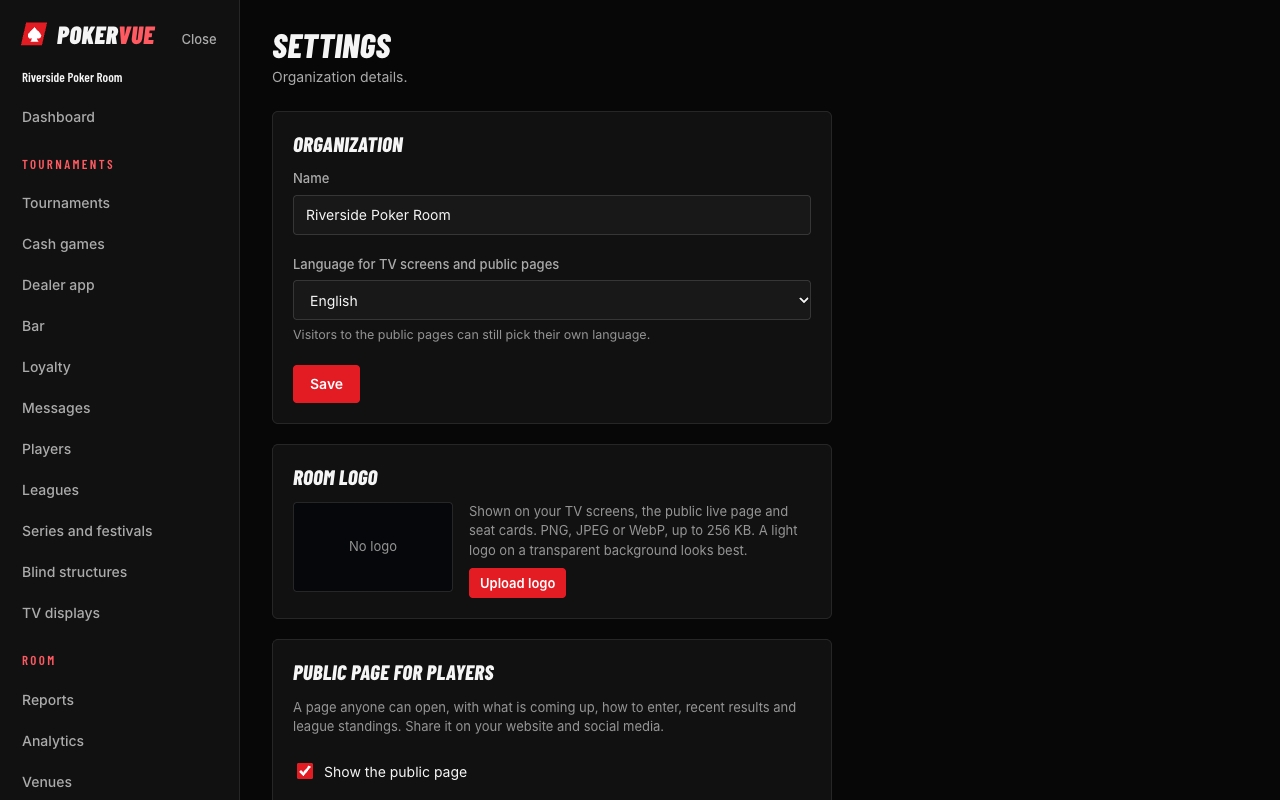
| Section | What you set |
|---|---|
| Organization | The room's name, default language and business-day start. |
| Games and tournament rules | Fields required at registration, whether players may join the cash waiting list online, receipts and ticket layout, and the receipt logo. |
| Payment methods | The ways a player can pay (cash, card, chips, account, transfer) and which are shown at the desk. |
| Public page for players | Turn the public room page on or off, its address, whether player names are shown, and whether the room is listed in the room finder. |
| Public page: links and banner | Website, Facebook, Instagram and X links, the cover banner, and the accent colour. |
| About the room (profile) | The kind of room (card room, casino, hotel…), opening hours for each day (with + Second session for a room that closes in the afternoon and opens again at night), number of tables, the minimum age, an announcement shown at the top of the public page (until a date you choose, or until you remove it), the rewards program (name, link, what members get), the games we spread (listed even when no table is running), facilities (Wi-Fi, food, parking, waiting list…), a map position for "near me", and whether cash games are listed. Websites and apps can read the same details with the API (GET /api/v1/room). |
| Reviews from players | Approve, reply to or hide what players wrote (section 17.5). |
| Room logo | The logo used on pages, emails and TV screens. |
| Sign-in security | Require two-factor sign-in for the whole team. |
| Room data | Export everything, schedule backups, close the room (a room closed is kept for a period before it is deleted). |
| Reported by your staff | Problems your team reported with Report a problem. |
| Room server | Details for the offline room server (section 22). |
17. Your public pages
Who: owners and administrators set them up; everyone on the internet sees them.
17.1 The public room page
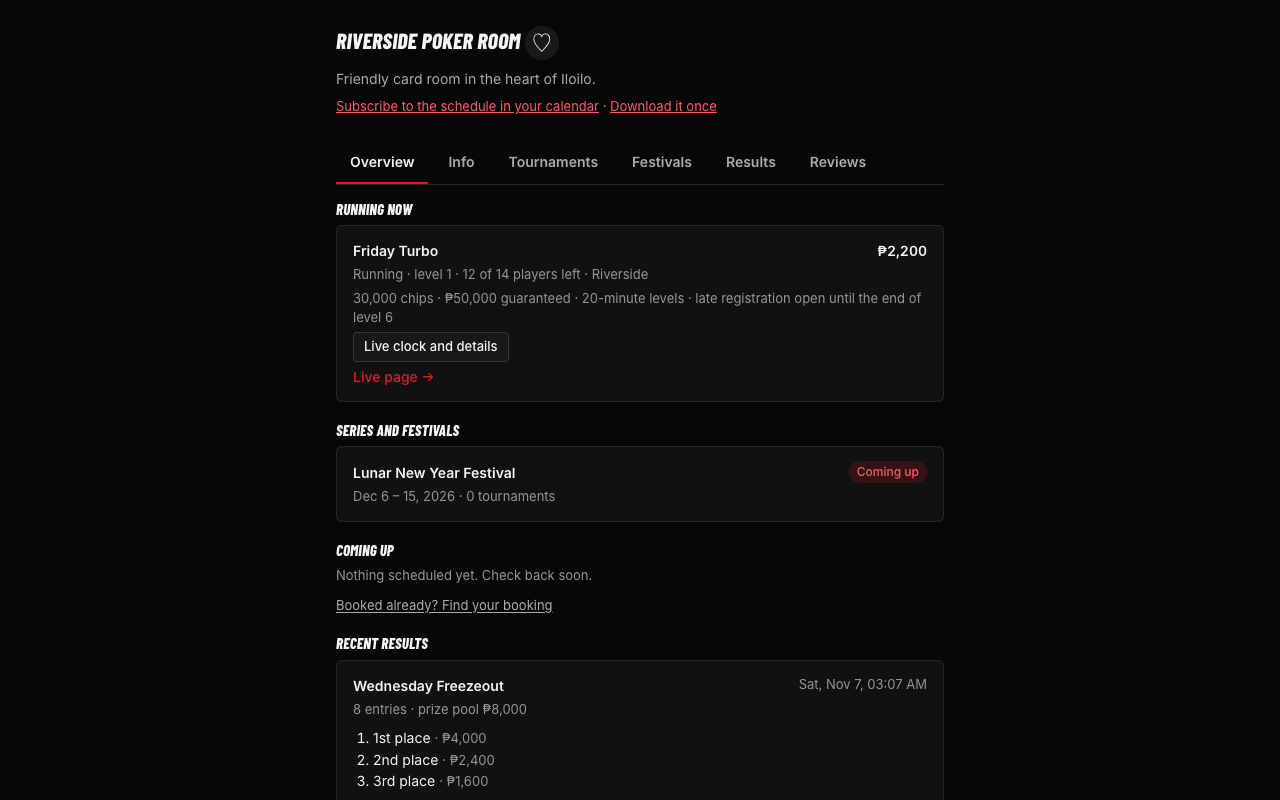
Each room can have a page at an address like /room/your-room. It has tabs: Overview, Info, Tournaments, Cash games (if listed), Festivals, Results, Reviews and Leaderboards (if a league is published).
- Info shows whether the room is open now (from its hours), the weekly hours with today highlighted, facilities, the number of tables, each club's address, phone, email and social links.
- Tournaments lists what is coming up and running with buy-in and guarantee. Tournaments with their own live page open the live clock.
- Results shows finished events with the champion, the champion photo and the places.
- A heart on the page lets a signed-in person keep the room as a favourite.
2 Running now
Sunday Deepstack · Level 6 · 34 leftComing up
Monday Turbo · Mon 19:00 · buy-in 1,000- 1 The tabs. Cash games shows only if the room lists them, Leaderboards only if a league is published. The heart keeps the room as a favourite.
- 2 Overview shows what is running now and coming up.
House rules. In Settings → Public page: links and banner, write the room's house rules (one rule per line or paragraph). They appear on the Info tab of the public page, so a player can read them before sitting down and the floor can point to them in a dispute.
17.2 Listing in the room finder
Turn on Listed in the room finder to appear for visitors from other rooms. Add a city and country, the room's kind and a map position to be found by search, filters and "near me".
Featured listing. POKERVUE can feature a listed room for a period: it is pinned at the top of the room finder and of its city page with a gold Featured label. Ask POKERVUE to arrange it; the platform admin sets the end date (Platform admin › the room › Featured listing), and the change shows in your activity log.
17.3 Tournament live pages
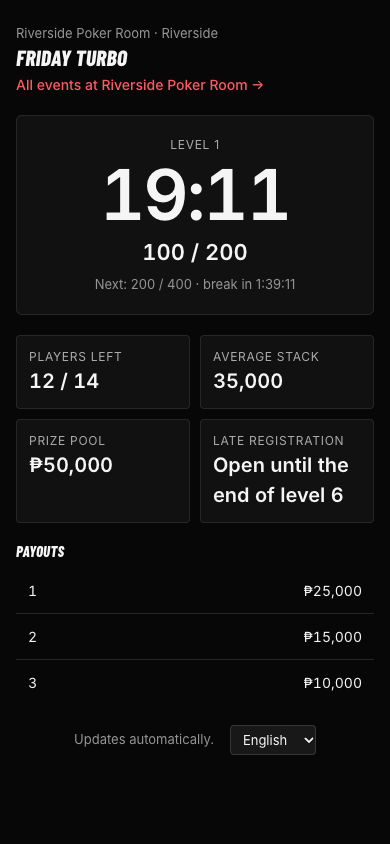
Each tournament can be switched to public; its page then shows the live clock, level, players left, and the prize pool. A tournament that is only a test never shows.
17.4 Online booking
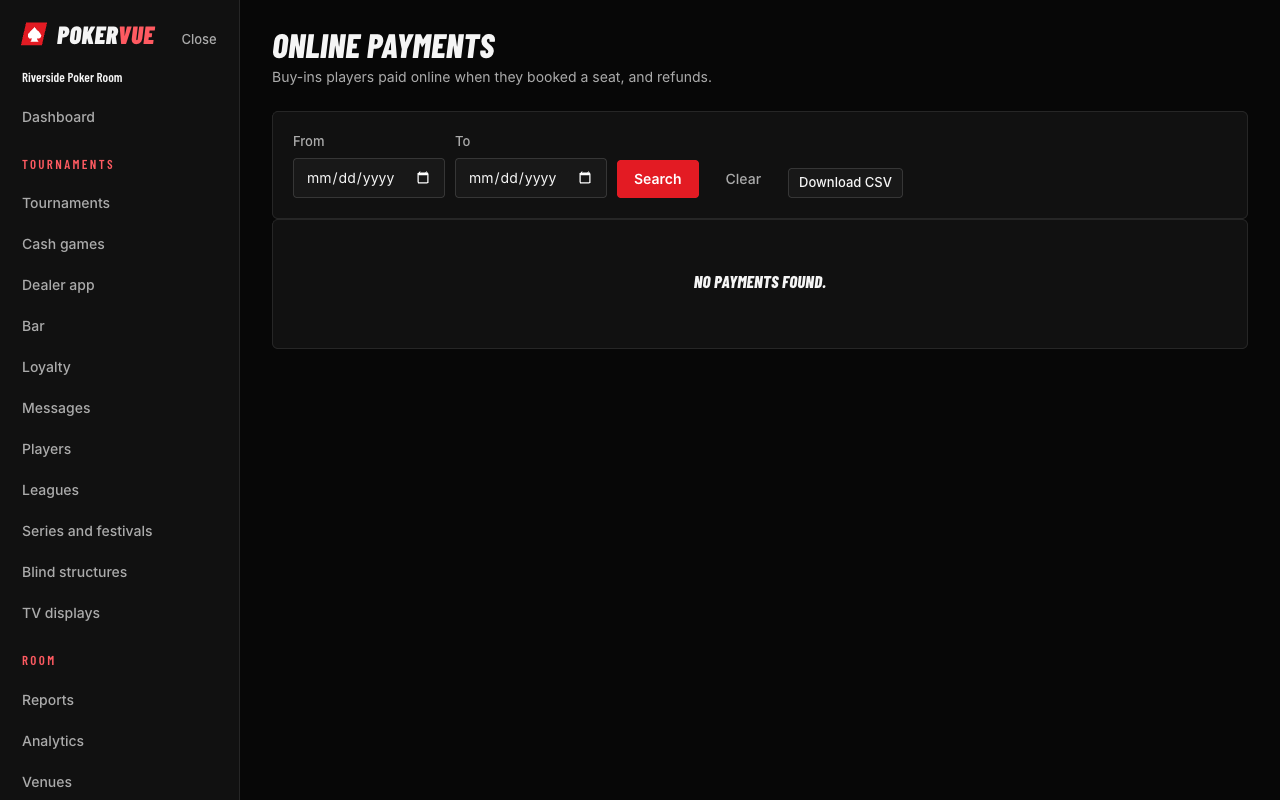
Turn booking on per tournament (section 5.7). The booking page asks for name and email only, sends a confirmation, and offers a cancel link.
17.5 Reviews
- Only players linked to the room can write a review (1–5 stars and a few words). They see "Waiting for the room to approve it" until you decide.
- In Settings → Reviews from players, choose Show on the page to publish, Hide to keep it private, and type an optional reply that shows under the review.
- Reviewers appear as a first name and an initial (for example "Ana R."). If a player edits their review it goes back to waiting.
- The Reviews tab shows the average and the number of reviews.
17.6 The room website
Who: owners and administrators set it up; everyone on the internet sees it. A feature of the Pro and Network plans.
On top of the public room page, a room can have a website: a home page in a look of its choosing, with what a visitor wants first. Turn on Show the room website and pick a look: Casino night (dark, gold and your accent colour), Clean club (light, airy) or Poster (bold type, your accent colour everywhere). Write a headline and a tagline, an optional about text, and choose the sections: promotions and jackpots (the high hands and bad-beat jackpots running at the cash tables, with the amount right now), running now (a clock tile per live tournament: level, players left, prizes, late entry), cash tables now (what is open, who waits), coming up, recent champions, reviews, a photo gallery (up to six images from the TV image library) and the way to the room (hours, address, phone, email). A section with nothing to show stays hidden. Everything deeper links into the public room page's tabs, where a visitor books a seat or joins the waiting list.
The address. The website answers at /site/your-room under the platform, and at your-room.<sites domain> when the platform has a sites domain. A room can bring its own domain (poker.yourclub.com): type it in the card, add a CNAME record for it at your registrar pointing to the sites domain, and tell the platform so its certificate is added. The site uses the room's language, accent colour, logo and banner from the other public page settings, and updates itself every half minute.
17.7 Deals
Who: managers with Loyalty or Messages publish deals; the desk, the cash floor and the bar check codes.
A deal is an offer that brings players in: a free meal with a tournament entry, 500 off a first buy-in, double points on a quiet night. Choose New deal and give it a title, a short value shown big ("Free meal", "500 off"), optional details and terms, when it starts and ends (empty starts now and runs until you take it down), and optionally how many players can claim it. Tick Only for players new to the room for a welcome offer: players already linked to the room cannot claim it.
- Running deals show on the room's public page (a Deals tab, and on the Overview), in the room finder's Deals tab, with a 🎁 on the room's card, and on its city page (the finder needs the room listed, section 17.2).
- A player signs in and chooses Claim this deal. They get a six-character code, also kept in My poker. Each player claims a deal once.
- At the desk, type the code in Check a code, see who claimed what, and choose Mark used. A code works once, and stops working when the deal ends or is taken down. A manager can Undo a code marked used by mistake.
- Take down stops a deal at once; Put back up brings it back. The table shows how many claimed it and how many used it. Every change is in the activity log.
17.8 Check-ins and problem reports
- Check in. Under the room's name on the public page, a signed-in player can choose I'm here: check in. Your Dashboard shows a Checked in card with who checked in in the last 12 hours (linked players open their record). A player who checks in again within six hours keeps the first check-in.
- Report a problem. Anyone can choose Report a problem with this page and say what is wrong (details, tournament or game information, the room closed or moved, something else), with an email if they want an answer. Reports appear in Settings › Problems reported by visitors; fix the page and choose Mark fixed. POKERVUE sees open reports too.
18. Integrations and website embeds
Who: owners and administrators.
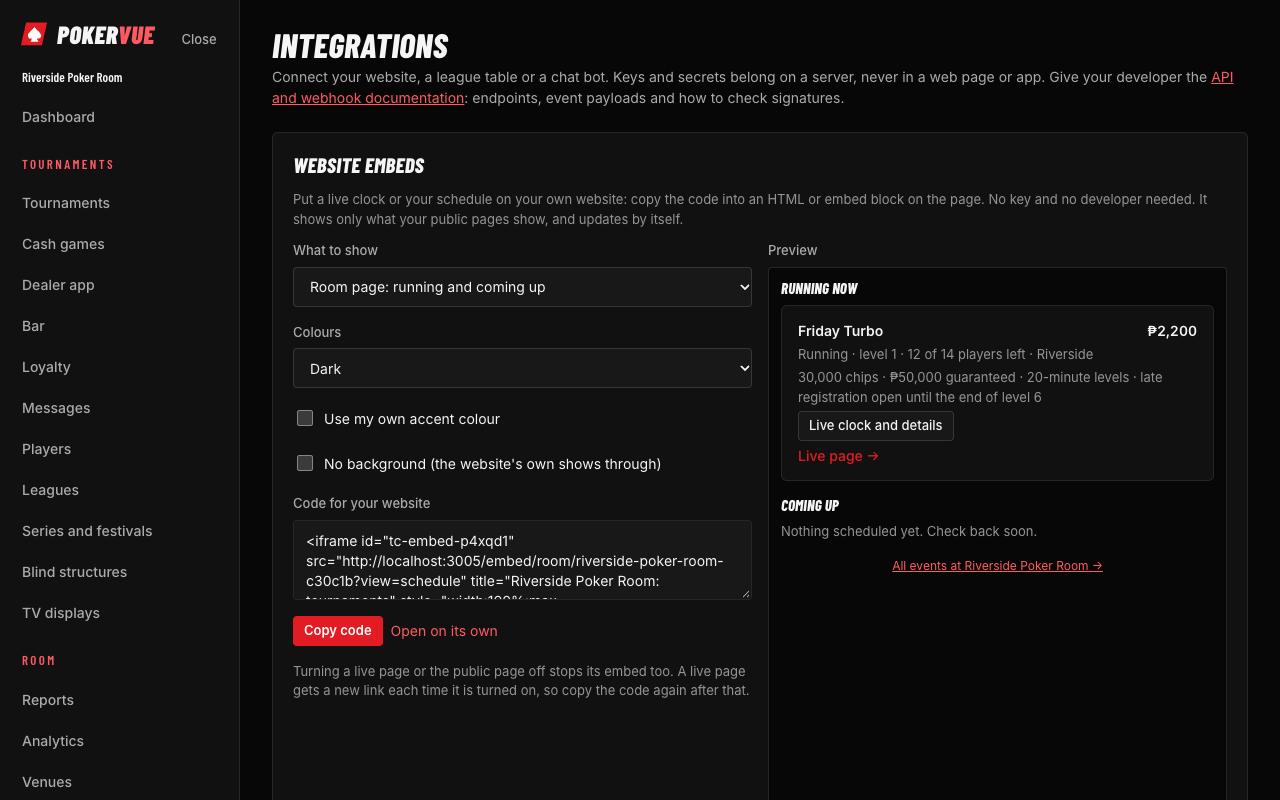
18.1 API keys
Under Integrations → API keys, create a key with a name and the access it needs (read only, or also create tournaments, players and entries). The key is shown once; copy it then. Developers use the key with the published API reference. Revoke a key at any time.
Websites and last day. When a club's own web page reads POKERVUE straight from the visitor's browser, add that page's website to the key (for example www.yourclub.com, up to 5). The key then works only from those websites and can only read, because visitors can see a key that is inside a web page. A key without websites is for a server only: never paste it into a web page. You can also give a key a last day, handy for a key you hand to a web agency or a partner: it stops working after that day. The Used from and Expires columns show both; Edit changes the name, websites and last day without changing the key itself.
18.2 Webhooks
A webhook sends a message to your own system when something happens (a tournament finished, a player registered, a seat booked). Choose the events, enter the address, and keep the secret to verify messages. The delivery list shows what was sent and whether it arrived, with a retry for failures.
18.3 Website embeds
Put your live data on your own website without a developer. Under Integrations → Website embeds:
- Choose what to embed: the room page, the schedule, a tournament's live clock, or a series (festival).
- Choose the look: dark or light colours, an accent colour, a transparent background, and the height.
- For a festival, choose its layout: Automatic (the festival's own choice), Grid by day, or List.
- Copy the generated
iframesnippet and paste it into your website's page.
19. Plan and billing
Who: owners (and administrators with the room update permission can look).
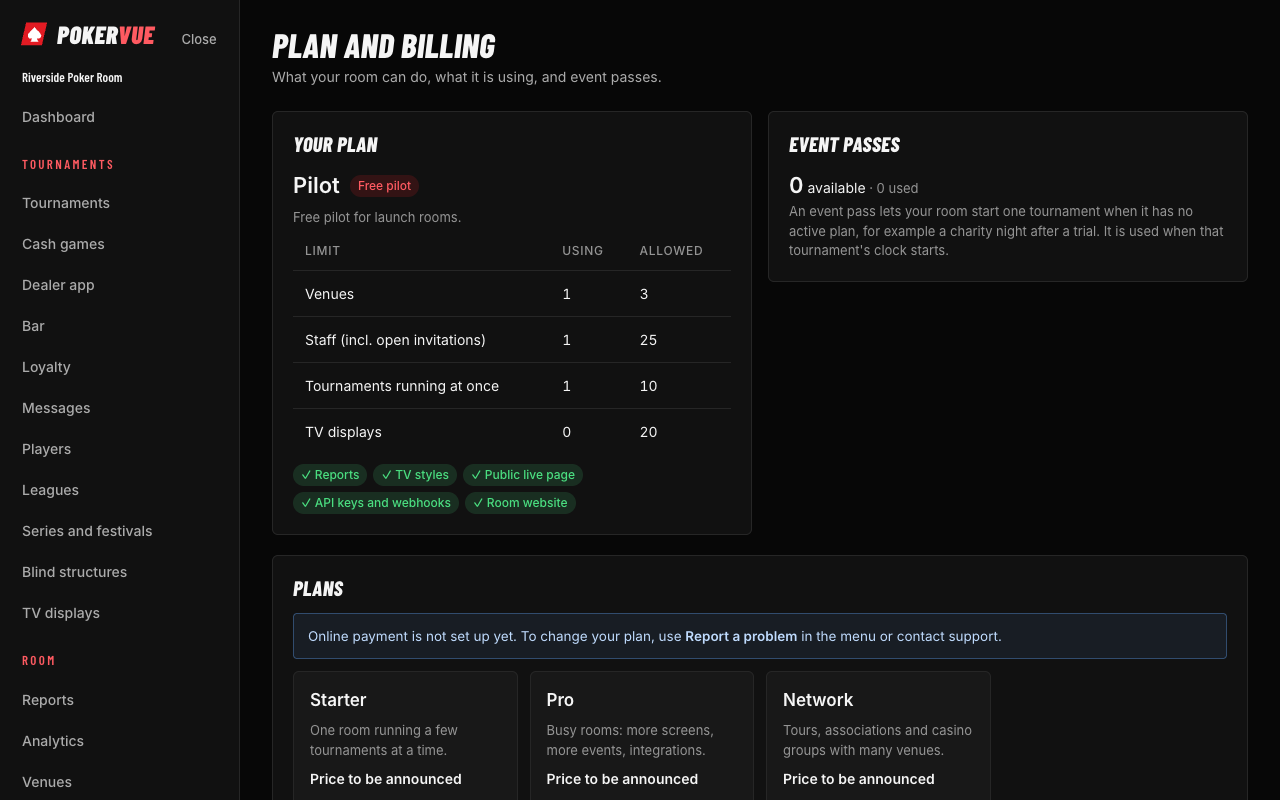
- Open Plan and billing to see your plan, the trial's end, the plans on offer, and event passes for one-off events.
- Choose a plan, enter payment details on the secure checkout, and download invoices. Updating a card is done there too.
- If a payment fails, a grace period keeps everything working while you fix it.
- If a plan ends, running tournaments continue; new ones cannot be started until it is renewed.
Billing details holds who invoices are made out to: business name, address, tax ID, and a billing email and phone. When a billing email is set, checkout uses it instead of your sign-in email. Emails from POKERVUE is set per owner: choose whether to get a reminder a week before a cancelled plan ends, a confirmation after buying event passes, and the language of these emails. Trial endings and payment problems are always sent to every owner.
20. For players: My poker
Who: any player with a free account.
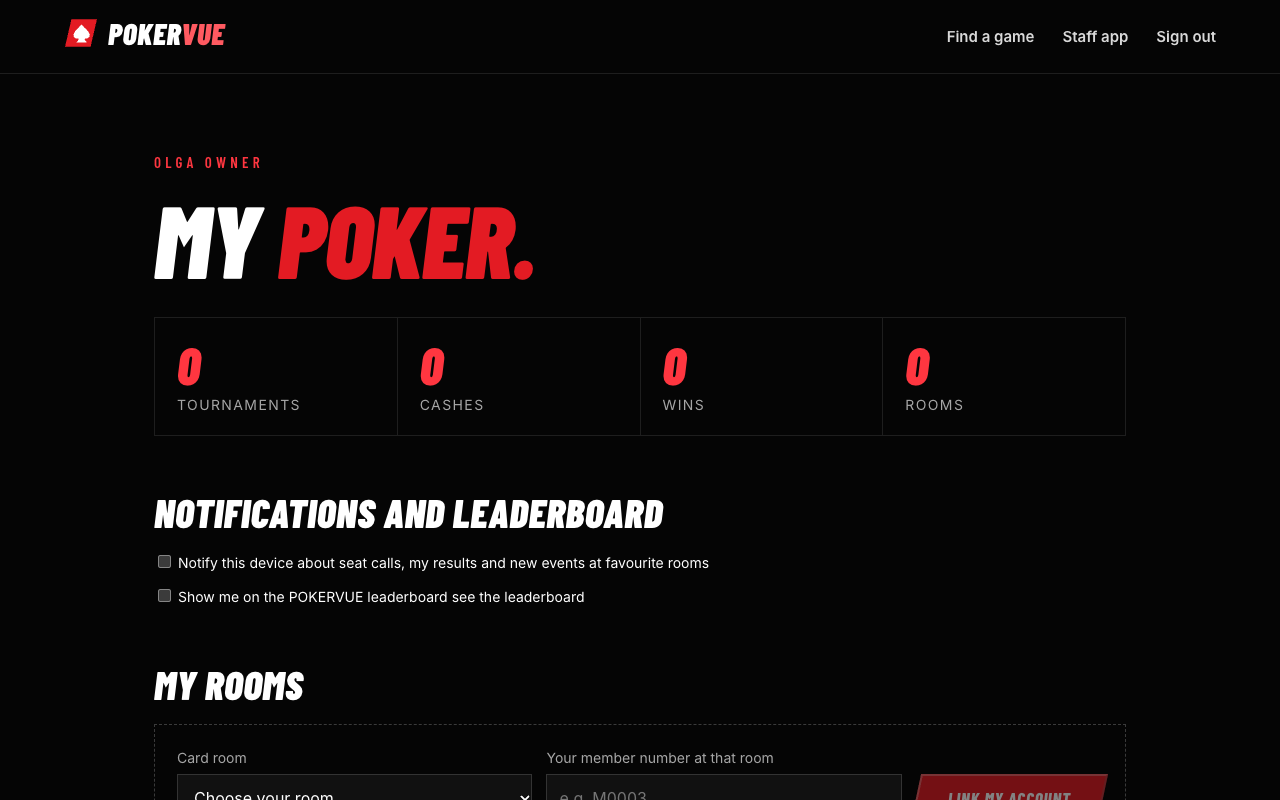
20.1 Create your account and link it to a room
- Sign up on the site with your name and email.
- Open My poker. Under My rooms, choose your card room from the list and type your member number at that room (ask the desk), then choose Link my account. If your room is not in the list, it is not in the POKERVUE directory yet: ask the floor.
- The room checks the member number and approves. The status changes from "Waiting for the room" to "Linked" (or "Not approved").
20.2 What you see
My poker.
18 Tournaments
2 Favourite rooms
Your Room ♥ · 1 running now☑ Email me when a favourite room lists a new event
☑ Notify this device about seat calls, my results and new events
3 My rooms
Your Room · Member M0003 Linked UnlinkCard room ▾ Member number Link my account
4 Cash game waiting lists
NLH 1/2 · 3 open seats · 2 waiting Join the list5 Results
- 1 Totals across your linked rooms.
- 2 Favourite rooms (the heart on a room page), and the switch for email alerts.
- 3 My rooms: the link status and the form to link a new room.
- 4 Cash game waiting lists, with Join the list.
- 5 Your results, with place and winnings.
- My rooms: the rooms you are linked to. You can unlink at any time.
- Totals at the top: tournaments, cashes, wins, rooms and cash points.
- Results: a table of your finishes (date, tournament, room, place out of the field, and what you won including bounties). Only you see it.
- Cash games: per room, your sessions, hours played and loyalty points.
- Leagues: your rank, points, games played and wins in the leagues of your rooms.
- Cash game waiting lists: see section 20.4.
- Favourite rooms: the rooms you kept with the heart, with what is running or coming up. Tick Email me when a favourite room lists a new event to get an email, at most once every twelve hours, about events starting in the next seven days. Untick it any time. Under Notifications and leaderboard, tick Notify this device to get notifications on that phone or computer instead of, or as well as, email: seat calls when a room you are linked to calls you to a cash table, your result when a tournament you played finishes, and new events at favourite rooms. The browser asks your permission once; a test notification shows it works. Turn it on separately on each device you want, and untick it on a device to stop. Tick Show me on the POKERVUE leaderboard to be ranked across every room that linked you, under a name you choose (and a flag, if you like); the public leaderboard is the last tab of the room finder, with this year, the last 12 months and all time. Points are the same everywhere: 100 × √(players ÷ place) − 100, so winning a 100-player event is worth 900 and last place nothing. You see your own rank next to the switch, and untick it to leave the board.
20.3 Reviewing a room
On the room's page, open Reviews. If you are linked to the room you can pick 1–5 stars and write a few words. The room approves reviews before anyone sees them. You can edit or delete your review.
20.4 Joining the cash waiting list
Rooms that allow it let linked players put their name on a cash game's waiting list from their phone. In My poker, Cash game waiting lists shows each game of your linked rooms with its stakes, open seats and how many are waiting. Choose Join the list; your place shows, and Leave the list removes you. When the room calls you, come within the time it set or your place may move or be lost.
20.5 Claiming a deal
Rooms publish deals (a free meal, money off a buy-in). Find them in the room finder's Deals tab, on a city page or on the room's page. Sign in and choose Claim this deal to get a six-character code; show it at the room's desk. Your codes are under My deals in My poker, marked Used once the room takes them, or Ended when the deal is over. Some deals are only for players new to the room.
20.6 Checking in and reporting a problem
At the room, open its page and choose I'm here: check in (signed in) so the room knows you arrived. If something on a room's page is wrong, choose Report a problem with this page; no account is needed.
21. For visitors: finding a room
Who: anyone, no account needed.
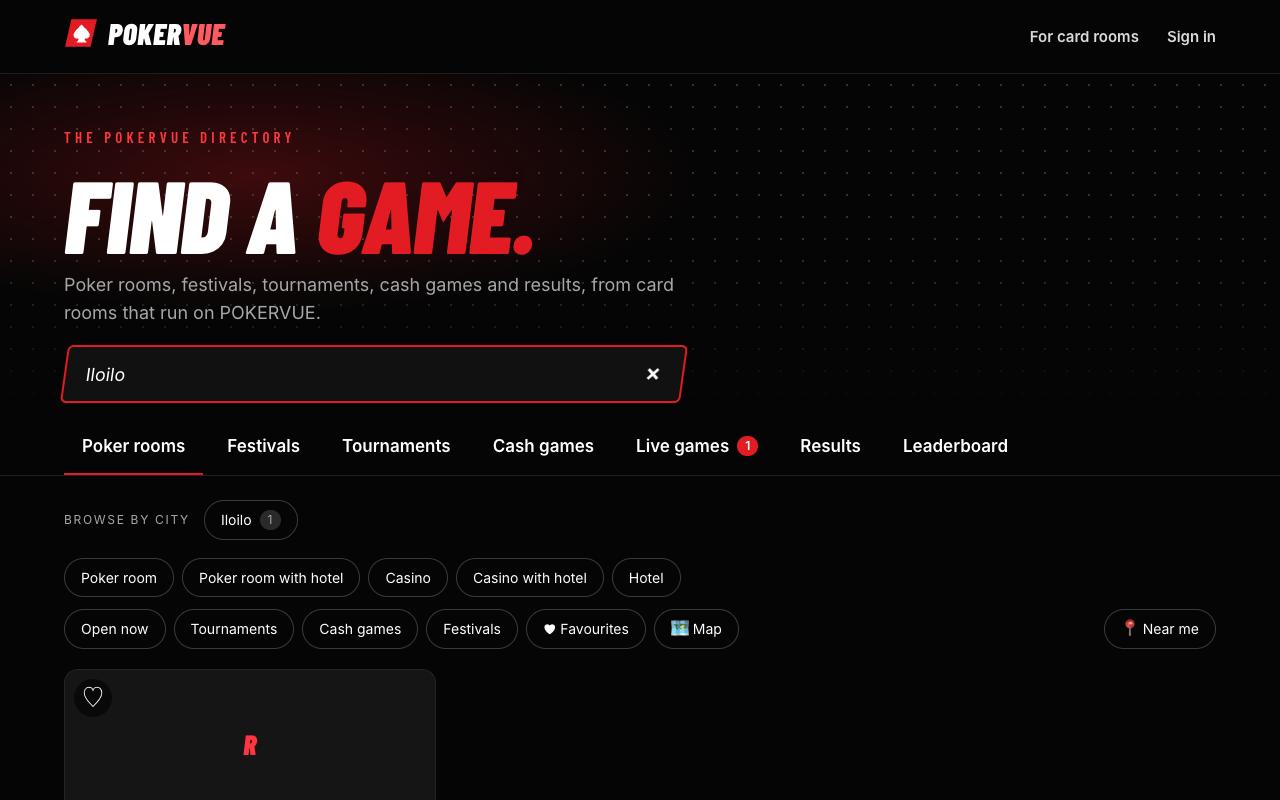
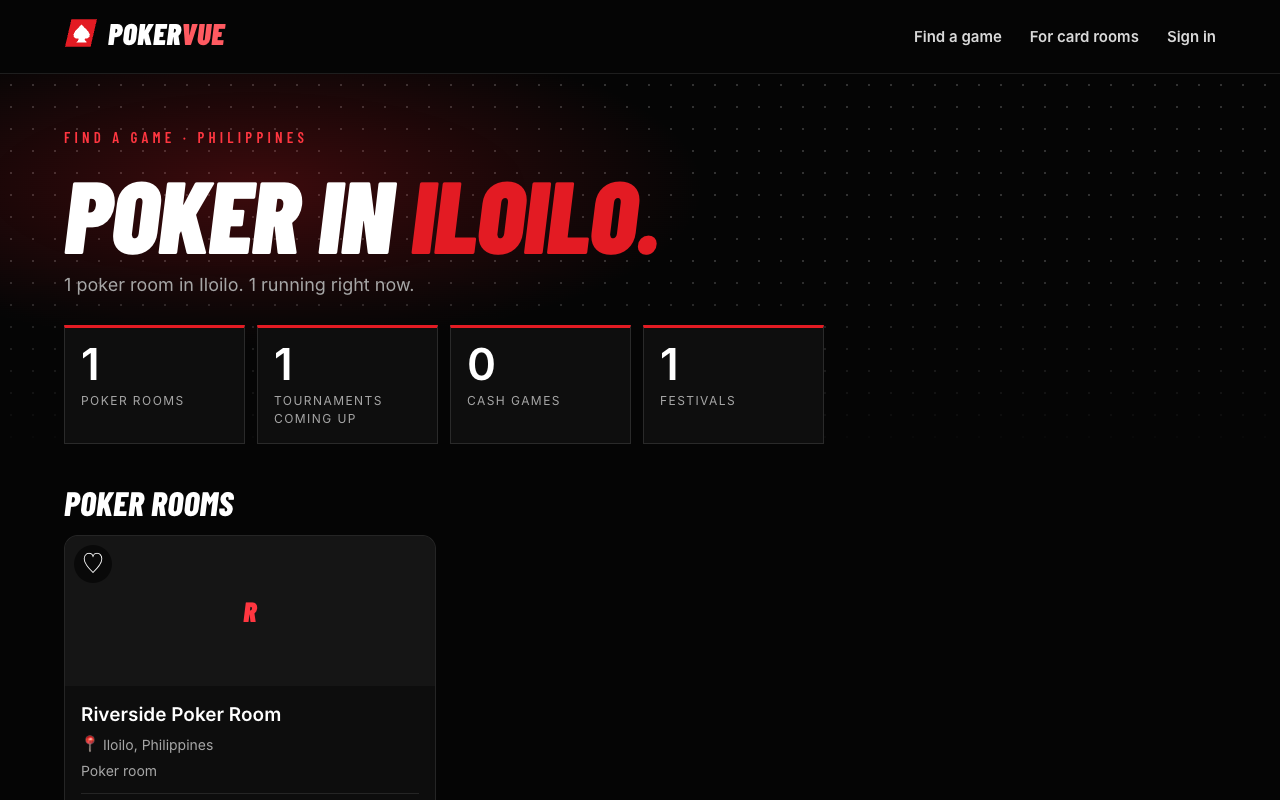
Open the room finder (the Find a game page). It has tabs. Every city with a listed room also has its own page, at /rooms/in/ and the city's name (for example /rooms/in/manila), which the platform lists in its sitemap for search engines.
The Festivals tab also lists Festivals around Asia announced on pokercalendar.asia, with a credit and a link to their pages: those rooms do not run on POKERVUE, so there is no schedule or result here for them. The platform administrator can turn that feed off.
Manila · Card room
Open now 1 tournament 6 tables
Cebu · Casino
Closed 3 coming up
- 1 Tabs: Poker rooms, Festivals, Tournaments, Cash games, Live games, Results.
- 2 Search by room, city or country; Near me sorts by distance; Map shows pins.
- 3 Filters for the kind of room and what is on.
| Tab | What you see |
|---|---|
| Poker rooms | Cards for each listed room with its cover, city, kind, whether it is open now, tournaments, cash games and tables. Filters: kind of room, open now, tournaments, cash games, festivals, and favourites. Near me sorts by distance (it asks for your location). Map shows the rooms as pins on a map; tap a pin to open the room. |
| Festivals | Upcoming and running festivals across rooms. |
| Tournaments | What is on today, this week and all upcoming events, with buy-in and guarantee, and a button to book where booking is on. |
| Cash games | Games with stakes, how many are playing and waiting, and the open seats. |
| Live games | What is running right now: the live tournaments, with their level and players left, and the running cash games. |
| Results | The latest results with the champion and photo. |
Use the search box for a room, a city or a country. Tap a room to open its page; sign in to heart a room, or to review it.
22. Working without internet
Who: floor managers and administrators.
- The clock keeps running if the internet drops. The control screen and the TV continue and the TV says it is offline.
- Desk actions (register, bust, rebuy) are queued and sent when the connection comes back. A banner shows how many are waiting.
- A room server (a small computer in the room) lets the whole room keep working, with several desks and TVs, while the internet is down, and syncs to the cloud afterward. Settings → Room server shows its status.
- Avoid changing the same record on two devices while offline; the later one is applied, and both are in the activity log.
23. Languages, accessibility and security
- Languages: English, 简体中文, 繁體中文, 日本語 and 한국어. Everyone picks their own in Account, and public pages have a language picker. A room's default language is used for emails to its players.
- Accessibility: pages work with a keyboard and a screen reader, and use clear contrast. The "Skip to content" link is the first item on every page.
- Security: passwords are stored hashed, repeated failed sign-ins are slowed down, two-factor is available (and can be required), and every important action is logged.
- Privacy: private player details are shown only to roles with permission. Public pages never show a player who asked to be hidden.
24. Troubleshooting and quick answers
| Problem | What to do |
|---|---|
| I cannot see a menu item. | Your role does not include it. Ask an owner or administrator. |
| "You no longer have access to this organization." | You were removed or the link is for another account. Check you are signed in with the invited email. |
| The invitation link says it is incomplete or expired. | Ask for the invitation to be resent from the Team page. |
| A tournament cannot be started. | The plan has ended or is paused. Open Plan and billing. |
| The TV shows the wrong time or says offline. | Check the TV's internet. It keeps time by itself and corrects when it is back. |
| A player cannot be registered. | They may be banned, already at the maximum entries, or the field is full (they go to the waiting list). |
| My festival is empty on the website. | The series page and its tournaments must be public. Flights show only if you added them to the series. |
| My room is not in the finder. | Turn on the public page and "Listed in the room finder", and add a city and country. |
| A review does not show. | It is waiting. Approve it in Settings → Reviews from players. |
| Texts are not sent. | Text messages need an SMS sender set up for the room. Email works without it. |
| The rake counted differs from the rake recorded. | Open the table report, check the session times and breaks, and correct the session if it was wrong; the correction is logged. |
| I forgot my password or lost my authenticator. | Use Forgot password. For a lost authenticator, an owner of the room can help; keep your recovery codes safe. |
For anything else, use Report a problem in the menu; it reaches your room's owners, who can reach platform support.
25. For the platform administrator
Who: the few people who run POKERVUE for all rooms. A room's owners cannot see or use these pages, and a platform administrator is not a member of a room unless invited.
A platform administrator sees Platform admin at the bottom of the menu. Every change made here is written to the platform log with the person's name and a reason they must type.
25.1 Rooms
Platform admin → Rooms lists every organization with its state, venues, staff, tournaments running now and last activity. Search by name, filter by state, and choose Show more for the rest. Opening a room shows:
- Subscription: plan, status, trial end, paid until and grace until, with optional overrides of the plan's limits. A room that pays online belongs to the payment provider: the plan, status and date come from it and its next event overwrites them, unless you tick Override the provider.
- Event passes: grant passes for one-off events.
- Featured listing: pick an end date (and a note such as the invoice number) and choose Feature the room. Until that date the room is pinned at the top of the room finder and its city page with a Featured label; Stop featuring ends it early. Payment for it is arranged outside POKERVUE for now.
- Suspend / lift suspension: suspending blocks new tournaments, venues, staff and screens; running tournaments keep going.
- Two-factor sign-in: if someone lost both their phone and their recovery codes, first make sure it is really them (call the room, ask the owner), then Reset two-factor. It goes off, they are signed out everywhere and set it up again with their password.
- Support access: shown only when the room's owner or an administrator allowed it under Settings (section 15.5). Open this room enters it as support; a banner tells everyone in the room.
- Payment events for the room, and a support log of platform changes.
- Delete room: removes the room and everything in it at once (players, files, tournaments, results and its activity log). Only the reason stays in the platform log. You type the room's name to confirm. This cannot be undone.
25.2 Plans and prices
Set each plan's currency, monthly and yearly price, what it includes, and its limits (venues, staff, tournaments running at once, TV displays). Prices show on the pricing page and the billing page. A plan can be bought online once it has its Paddle price IDs for monthly and yearly (each starts with pri_ and they must differ).
25.3 Health
A live view of the server, refreshed every 10 seconds: database, live updates (the listener behind every clock), the webhook worker and its queue, background jobs (payment provider, billing reminders, retention clean-up) and mail (sent, failed, last sent, last failure). If the listener is down, clocks on screens do not update until it is back; the server retries every 2 seconds.
25.4 People
Find an account by its exact email address. You can see which rooms the person belongs to and their sign-in method, clear the sign-in lock (after repeated failed sign-ins, once the person on the phone is who they say they are), and sign them out everywhere (when a device was lost or a password shared). Failed sign-ins are listed.
25.5 Payments, log, feedback and enquiries
- Payments: the payment provider's events. Those that named no room the app knows (
unknown_org, for example a room deleted and made again) are listed as unmatched payments; attach each to the room that paid. - Log: every change made from these pages and by the platform itself, newest first. Rooms deleted since keep their name here.
- Feedback: what staff sent with Report a problem, from every room, newest first.
- Enquiries: messages from the Contact sales form at the bottom of the POKERVUE home page (name, who they are, email, phone, country and message). Each one is also emailed to the sales inbox when the server has
SALES_EMAILset. It opens on the ones not handled yet; choose Mark handled once you have answered, or Reopen. Below them, Problems reported on room pages lists the open reports visitors sent from rooms' public pages (section 17.8), with a link to the room.
26. Quick reference by role
| Task | Owner | Admin | Floor | Monitor | Read-only |
|---|---|---|---|---|---|
| Look at tournaments, players, team | ✔ | ✔ | ✔ | ✔ | ✔ |
| See private player details | ✔ | ✔ | ✔ | ✔ | – |
| Create tournaments, series, leagues | ✔ | ✔ | – | – | – |
| Build blind structures | ✔ | ✔ | ✔ | – | – |
| Run the clock, register, bust, pay out | ✔ | ✔ | ✔ | – | – |
| Run cash tables and sessions | ✔ | ✔ | ✔ | – | – |
| Send a table report with rake count | ✔ | ✔ | ✔ | – | – |
| Sell at the bar | ✔ | ✔ | ✔ | – | – |
| Manage products, loyalty, messages | ✔ | ✔ | – | – | – |
| Reports and analytics | ✔ | ✔ | – | ✔ | – |
| Activity log | ✔ | ✔ | – | ✔ | – |
| Venues, team, roles, settings | ✔ | ✔ | – | – | – |
| Integrations (keys, webhooks, embeds) | ✔ | ✔ | – | – | – |
| Plan, billing, other owners | ✔ | – | – | – | – |
| Use the dealer app, take player-account money | ✔ | ✔ | ✔ | – | – |
Platform administrators and support access (Look only, or Look and make changes) are described in sections 15.5 and 25; they are not room roles.
A custom role can mix permissions; use the table above as the starting point for the built-in roles.
Glossary
| Flight | A Day 1 start of a multi-day event; each is a tournament that feeds the Day 2. |
| Bagged | A player's chips saved at the end of a flight for the next day. |
| Guarantee | The prize pool the room promises, even if the entries fall short. |
| Rake | The room's share of a cash game (percent, per hand or per time). |
| Session | One player's stay at a cash game, from sitting down to cashing out. |
| Member number | The number that links a person's online account to their player record. |
| Listed | Shown in the room finder to visitors from other rooms. |
Features marked as needing an SMS sender, payments or an account setup depend on the services your room connects. This manual describes POKERVUE as of the edition date on the cover.
↑ Top